Create and post a manual journal entry
Record a double-entry manual journal — add debit and credit lines, post it, reverse or void it, set it to repeat, auto-reverse it and attach documents.
A manual journal records a double-entry transaction directly in your ledger — the debits and credits you enter by hand rather than through an invoice, bill or payment. You'll use it for adjustments like accruals, depreciation, reclassifications and corrections.
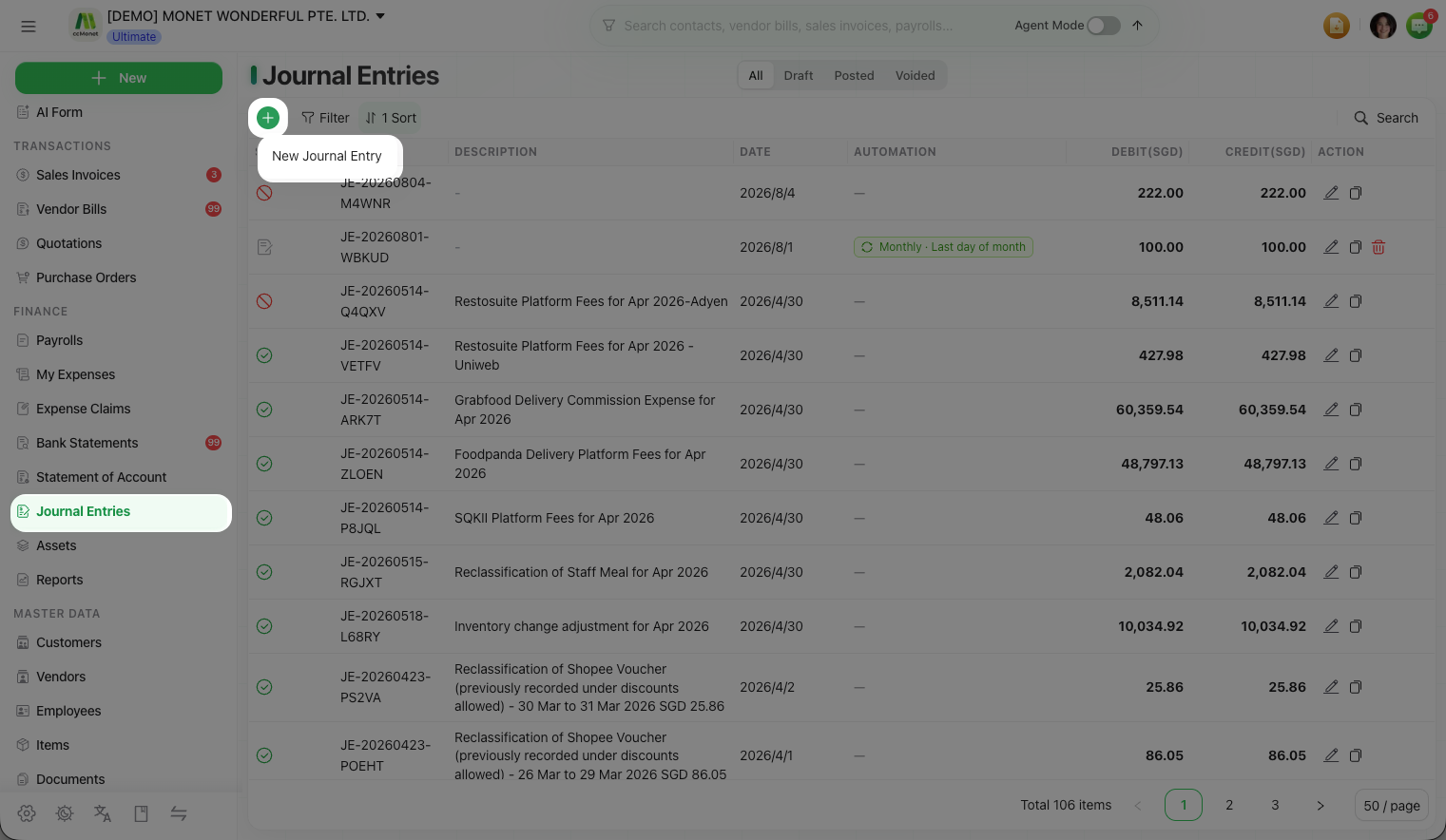
Manual journals live under Finance → Journal Entries, where each entry moves through the statuses Draft, Posted, Reversed and Voided.
A manual journal writes straight to your general ledger. Most everyday transactions are better recorded as invoices, bills or payments so they stay linked to a contact and document — CCMonet shows a similar caution for people who aren't comfortable with double-entry. If you're unsure whether a journal is the right tool, ask your accountant.
- The accounts (categories) you need exist in your Chart of Accounts.
Create and post a journal entry
Start a new entry
Open Finance → Journal Entries and create a new journal entry. The entry form opens.
Enter the header
Set the journal date and a description (narration) so you'll recognize the entry later.
Add debit and credit lines
Add a line for each account the entry touches. On every line you choose:
- a category (the account to debit or credit),
- the amount, on the debit or credit side, and
- optionally a contact, a tracking category, and a tax rate.
Add as many lines as the entry needs. Total debits must equal total credits before you can post.
Save as draft or post
Choose Save as draft to keep working on it later, or Post to record it in the ledger. A draft doesn't affect your reports until it's posted.
Journal statuses
You can filter the journal list by status to find entries quickly.
| Status | What it means |
|---|---|
| Draft | Saved but not yet in the ledger; edit or post it later. |
| Posted | Recorded in the general ledger. |
| Reversed | A posted entry that has been backed out by an opposite entry. |
| Voided | Cancelled so it no longer affects the ledger. |
Reverse or void a posted journal
Once an entry is posted you don't edit it in place — you reverse or void it:
- Reverse creates an opposite entry (debits and credits swapped) so the original and its reversal net to zero, leaving both on the record. Use this to back out a posted journal while keeping the audit trail.
- Void cancels the entry so it no longer affects your ledger.
Posting, reversing and voiding each have a different effect on your general ledger, and the date you choose for a reversal determines the period it lands in. CCMonet performs the posting; whether to reverse or void, and which date to use, is an accounting decision to confirm with your accountant.
Set up a repeating journal
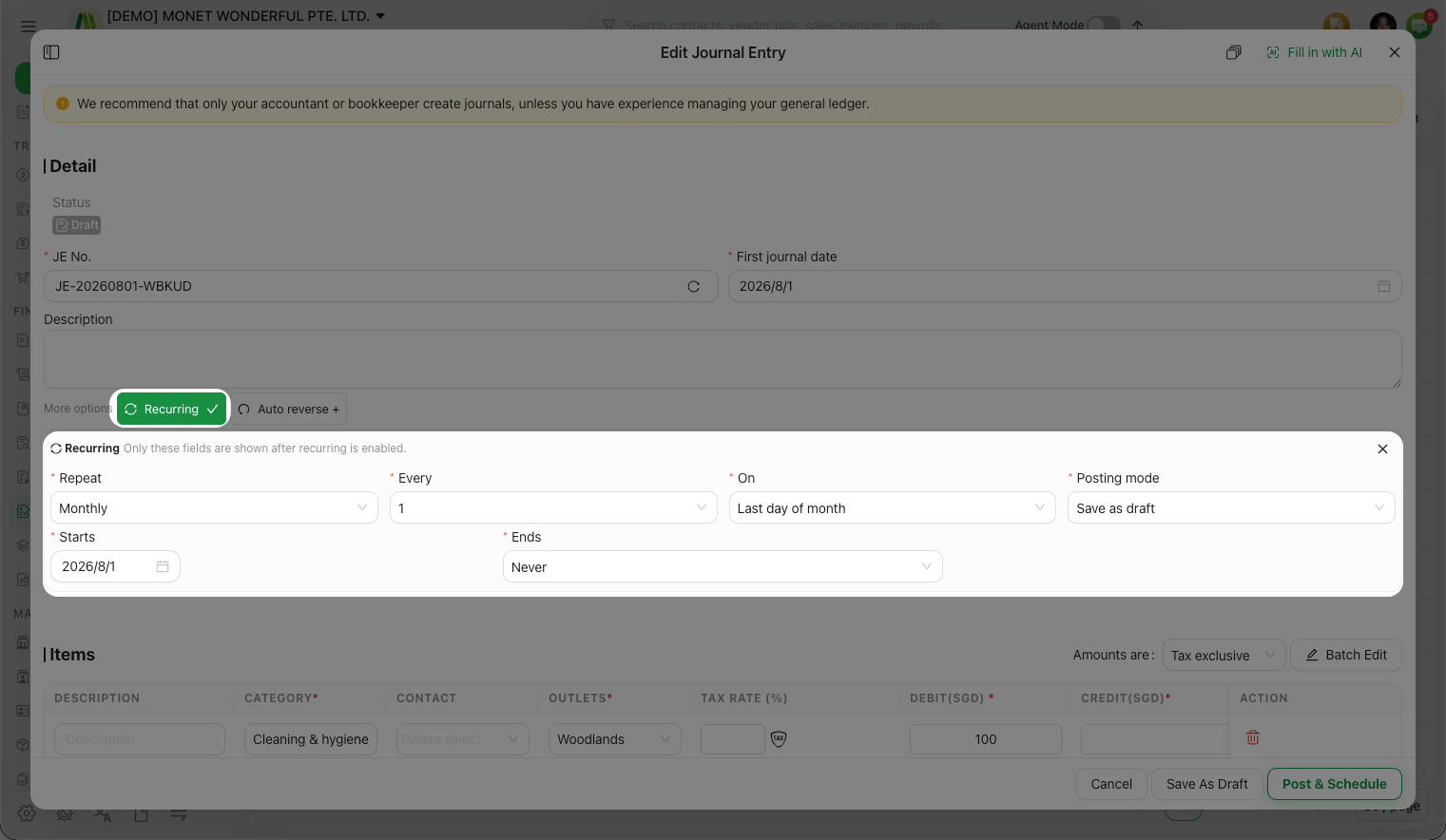
For an entry you make on a regular cycle — a monthly accrual, say — set the journal to repeat on a schedule so CCMonet raises it for you each period instead of you re-keying it.
Add an automatic reversal
A journal can be set to auto-reverse on a later date — CCMonet posts the entry now and automatically posts its reversal on the date you pick. This is the usual pattern for accruals that should unwind at the start of the next period.
Auto-reversal posts a reversing entry on a future date you choose. The right reversal date depends on your accounting periods and how the accrual should unwind — set it in consultation with your accountant.
Attach supporting documents
You can attach files to a journal entry — a calculation, an agreement, a spreadsheet — so the evidence behind the entry stays with it. Attach the supporting document to the entry as you create or edit it.