Set your opening (conversion) balances
Bring your starting balances into CCMonet — enter them by account or import a trial balance, use AI to fill them, and make sure they balance before you finish.
When you move to CCMonet from another system, your accounts already carry balances. Opening balances — also called conversion balances — bring those starting figures in, so your Balance Sheet and Trial Balance are correct from your first day. You set them from the Conversion Balance action in the reports area.
Opening (conversion) balances are your opening statement of financial position — the assets, liabilities and equity you carry into CCMonet at the conversion date, the same idea IFRS uses for the opening balance sheet an entity prepares when it first adopts IFRS (IFRS 1). Like any set of balances they must obey double entry — total debits equal total credits — with the balancing figure landing in equity / retained earnings. This guide shows how to enter them in CCMonet; the figures themselves should come from your accountant or your prior system's trial balance as at the conversion date.
- Your company settings and fiscal year are confirmed.
- Your Chart of Accounts is set up.
- You have your closing balances (or a trial balance) from your previous system as at your conversion date.
Enter opening balances
Open Conversion Balance
In the left sidebar, under Finance, open Reports, then choose Conversion Balance from the report header to open the opening-balance setup.
Pick your conversion date and fiscal year
Set the conversion (end) date — the date your balances are as at — and the fiscal year they belong to. This is the point from which CCMonet takes over your books.
Enter your balances by account
Type the opening balance for each account, on the debit or credit side. Or bring them in at once by importing a trial balance (below).
Make sure it balances and finish
If your entries don't add up, CCMonet flags the fiscal year as Not Balanced and shows the Difference — total debits must equal total credits. Clear that difference before you finish, so your opening position is balanced.
Import a trial balance instead
If you have a trial balance from your previous system, you don't have to type each figure:
- Import a trial balance — upload your trial balance and map its rows to your CCMonet accounts.
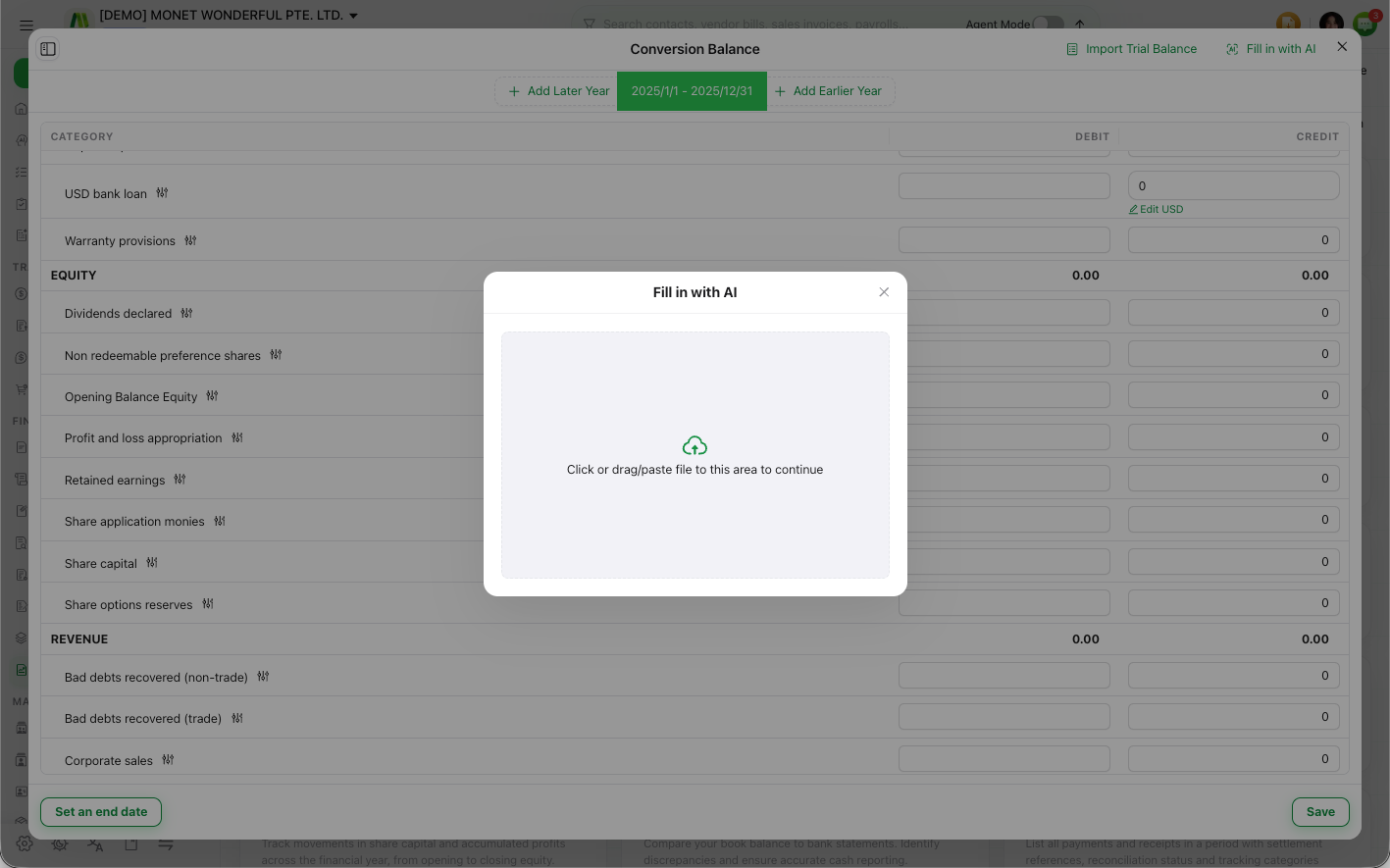
- Fill in with AI — upload a file and let AI extract the balances (and, where relevant, contacts) for you to review before applying.
Both routes land in the same Conversion Balance screen, which still checks that everything balances before you finish. Always review AI-extracted figures against your source document before you apply them.
Match your outstanding receivables and payables
When you carry unpaid customer invoices or supplier bills into CCMonet — anything after your first period of trading — enter your Accounts Receivable and Accounts Payable by Contact rather than as one lump sum. On each AR/AP row, pick the customer or vendor and split the balance per contact, so your aged receivables / payables reports are right from day one. Each contact then has to be backed by a document.
Each contact row shows a Matched or Needs Match badge (with the outstanding Difference). Open it and use Add Document:
- The original exists — an outstanding bill or invoice already in CCMonet, dated on or before the conversion date, backs the balance automatically and shows Booked.
- You can't find the original — create an opening document. Enter the total (tax inclusive), the document date (may be earlier than the conversion date; it only sets the ageing bucket), a due date and a document number (auto-generated, editable). Customer → Opening Invoice / Opening Credit Note; vendor → Opening Bill / Opening Debit Note.
Add documents until every contact reads Matched (you can save with some unmatched after confirming, but ageing only ties out when they're all matched). After aligning, a Lock Date (Settings → Accounting & Operations) protects the opening position.
The opening bills and invoices created here are real outstanding documents — they appear in your Vendor Bills and Sales Invoices lists (amount locked, managed from Conversion Balance), so you can later record payment against them and reconcile them against the bank, and they clear from your ageing like any other document.
Opening balances feed the starting position of your Balance Sheet and Trial Balance. Once entered, an opening-balance entry is managed here in Conversion Balance — you adjust it from Reports → Conversion Balance rather than editing it as an ordinary transaction.