Manage your Categories (Chart of Accounts)
View, add and edit the categories that make up your Chart of Accounts, enable accounts for AI matching, and understand how categories feed your reports.
Your Categories are CCMonet's Chart of Accounts — the list of accounts used to classify every transaction, journal and report. The category list drives the category pickers you see throughout the app, so keeping it tidy keeps your coding and your reports consistent.
Categories live under Settings → Categories.
A Chart of Accounts sorts every account into the five elements of financial statements from the IASB Conceptual Framework — assets, liabilities, equity, income and expenses (CCMonet groups them as ASSET / LIABILITY / EQUITY / REVENUE / EXPENSE). Each category's account type decides which element it belongs to, and therefore where it reports: income and expense types roll up into the Profit & Loss, and asset, liability and equity types into the Balance Sheet. Your organization's Category class sets the taxonomy the whole chart follows — Simplified, IFRS, GAAP or Detailed Specialty — so pick IFRS if you report under IFRS. How the chart should be structured for your entity is a judgment for your accountant.
Categories are managed by the organization Owner.
View your categories
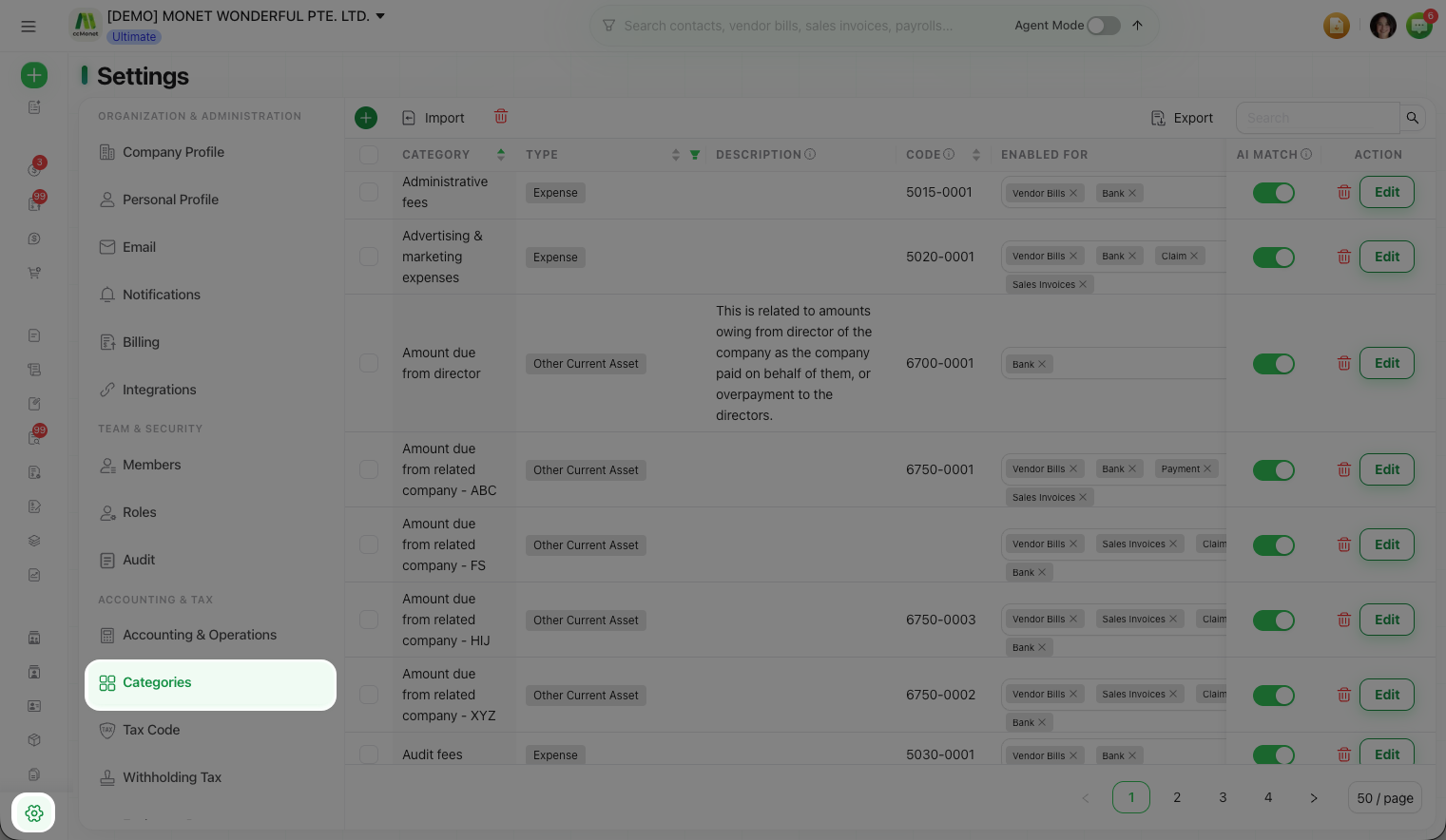
Open Settings → Categories to see the full account list. CCMonet ships a sensible default chart, so in most cases you're reviewing and tailoring what's already there rather than building from scratch. Use the search/filter to find an account quickly in a long list.
Add or edit a category
Open the category list
Go to Settings → Categories.
Add a new account
Add a new category for an account you need. Give it a name and set its account type so it classifies correctly in your reports.
Edit an existing account
Open any category to edit its details. Because categories feed pickers across the app, a rename flows through to everywhere the account is used.
Each category has an account type, and that type determines how the account is classified in the Profit & Loss, Balance Sheet and other reports, and how transactions post to the ledger. Before you restructure your chart or change an account's type, confirm the structure with your accountant so your reports classify correctly.
Choose where an account can be used — Enabled For
When you add or edit a category, Enabled For decides which parts of CCMonet can pick this account. Tick only the modules where it belongs:
- Vendor Bills · Sales Invoices · Claim (expense claims) · Bank Reconciliation (reconcile adjustments) · Payment
An account only appears in a module's category picker if that module is ticked here. CCMonet pre-ticks sensible modules for the account type you chose; narrowing them keeps each document's picker short and stops an account being coded where it doesn't belong.
Foreign-currency accounts and Revalue Open Balance
Some accounts are held in a currency other than your functional currency, and CCMonet handles them in two ways:
- Bank and Credit Card accounts opened in a foreign currency carry that currency of their own.
- Other monetary accounts can be pinned to a single foreign currency with Revalue Open Balance. This option appears only for these account types: Other Current Asset, Non-current Asset, Other Current Liability and Long Term Liability. Tick it and pick a Source Currency (any currency except your functional currency). CCMonet then holds that account's balance in that one currency and revalues it at each report date, posting the movement to Foreign Exchange Gain/Loss – Unrealized — which is exactly what makes the account appear in the automatic foreign-exchange gain/loss reports. The account's type, the Revalue option and the source currency are locked once the category is created — to change them, create a new category and move the balance across with a journal entry.
A foreign-currency Bank / Credit Card account and a Revalue Open Balance account are held in a single foreign currency, so you record their opening balance in that source (foreign) currency when you set your opening (conversion) balances — CCMonet stores both the source amount and its functional-currency value. Day to day you work in your functional currency, and the period-end revaluation and its FX gain/loss are handled for you. Confirm the treatment with your accountant.
Enable a category for AI matching
When CCMonet's AI recognizes an uploaded invoice, bill or receipt, it only ever picks from categories that have AI Match switched on — a category with AI Match off never appears in AI match results (you can still choose it by hand when coding). Turn AI Match on for the accounts AI should use and off for those it shouldn't; at least one category must stay enabled.
AI coding is only as good as the accounts you let it choose from. If AI keeps suggesting the wrong account, narrow the set of AI Match–enabled categories.
How categories map to reports
Every transaction is coded to a category, and each category rolls up into your financial statements according to its account type — revenue and expense accounts flow into the Profit and Loss, while asset, liability and equity accounts flow into the Balance Sheet. That's why a clean, correctly-typed chart is what makes your reports meaningful.
Control accounts
A control account is a single general-ledger account that stands in for a whole subsidiary ledger. Your Accounts Receivable and Accounts Payable accounts work this way: rather than a separate ledger line per customer or vendor, the AR and AP control accounts carry the total owed to and by you, while the per-contact detail lives in each customer's and vendor's subledger. The control-account balance always equals the sum of its subledger — which is what makes your aged receivables / payables reports tie back to the Balance Sheet.
Because these balances are built up automatically from bills, invoices, payments and their contacts, CCMonet manages control accounts for you through settings on the Accounting & Operations tab (see Set your functional currency and fiscal year end):
- Control Account — the organization's default AR / AP account that new contacts post to.
- Control Account Auto-Mapping — assigns the GL account automatically from a contact's Trade / Non-Trade and relationship status, so trade debtors and non-trade balances stay in separate accounts.
- Control Account Override (per contact) — leave it empty to use the organization default, or pick a specific account to override it for that one customer or vendor.
- Allow Control Accounts on Line Items — off by default. Keeping it off stops AR / AP being posted to directly on a line item, journal or reclassification, which protects the control-account balances and keeps aging accurate. Turn it on only for deliberate adjustments your accountant approves.
Control accounts (AR / AP) are what reconcile the Balance Sheet to your contact subledgers and your aging reports. Posting to them directly, or remapping a contact's control account, moves those balances — do it deliberately, and confirm the treatment with your accountant. Changing an account's type also restates it across your historical data, so agree the chart structure before you change it.