Confirm your company settings
Set your company profile, functional (base) currency, fiscal year end and tax registration before you enter any data.
This is the first thing to do in a new organization. Your company profile, currency and fiscal year set the foundation for every report, so it's worth getting them right before you enter any transactions.
Company profile settings are managed by the organization Owner.
- Open Settings from the sidebar.
Set up your company profile
Fill in your business details
On the Company Profile tab, enter your registered business name, registration number, country, address and principal activities. These appear on the documents you send (invoices, statements of account) and on your reports.
Set your functional (base) currency
Choose the currency your books are kept in — your functional currency (also called your base currency). ccMonet records every transaction and report in this currency, converting foreign-currency amounts back to it.
Set your fiscal year end
Set the month your financial year ends. If your first year in ccMonet is a short or long transitional period, you can configure a custom first fiscal year so reporting periods line up with your accounts.
Confirm your tax registration status
Confirm whether your business is registered for tax (for example GST or SST) so ccMonet knows whether to apply tax on documents. Tax codes and rates themselves are configured separately under Settings → Tax Code.
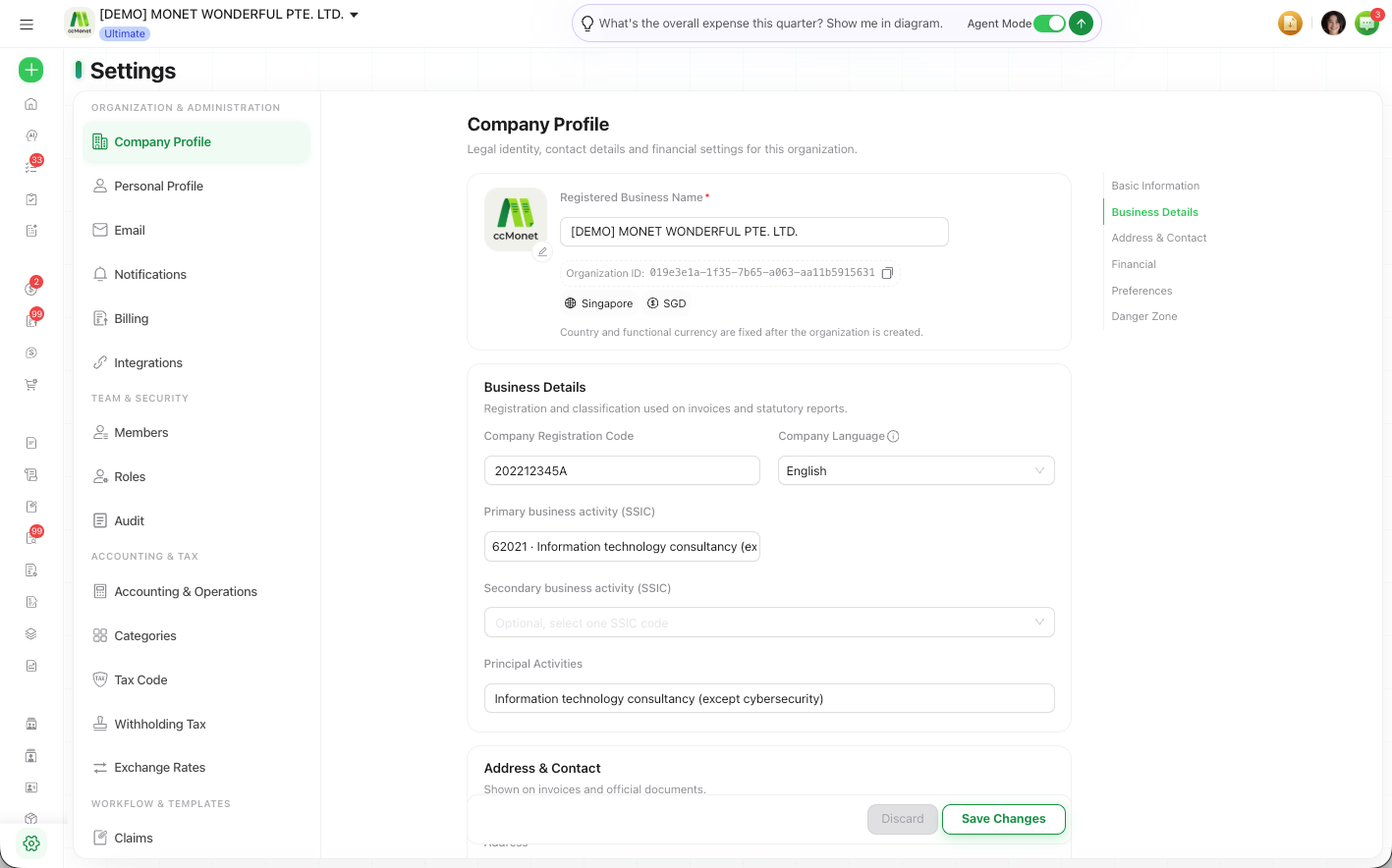
An Accounting & Operations tab holds additional accounting and operational settings for the organization.
Your functional currency and fiscal year end are foundational — many downstream figures depend on them, and they are difficult to change once you've recorded transactions. Confirm them before you enter opening balances or import data.
Your functional currency, fiscal year end and tax registration status drive how transactions are recorded, how foreign-currency amounts are converted, and how your reports and tax figures are calculated. ccMonet applies these settings for you, but which values are correct for your business — and the tax treatment that follows — should be confirmed with your accountant.
Related settings
- Base currency and exchange rates are managed under Settings → Exchange Rates, where you can add the currencies you trade in and review provider-supplied rates.
- Tax codes and rates live under Settings → Tax Code.