Invite your team & accountant
Invite members, assign roles, bring in your external accountant, and understand what each role can see and do.
Bring in the people who'll use ccMonet with you — colleagues, and your external accountant or bookkeeper. Each person gets a role that decides what they can see and do.
Members and roles are managed by the Owner, an Administrator, or a designated member manager.
- Open Settings → Members.
Invite a member
Open Members
Go to Settings → Members to see everyone already in the organization.
Send an invite
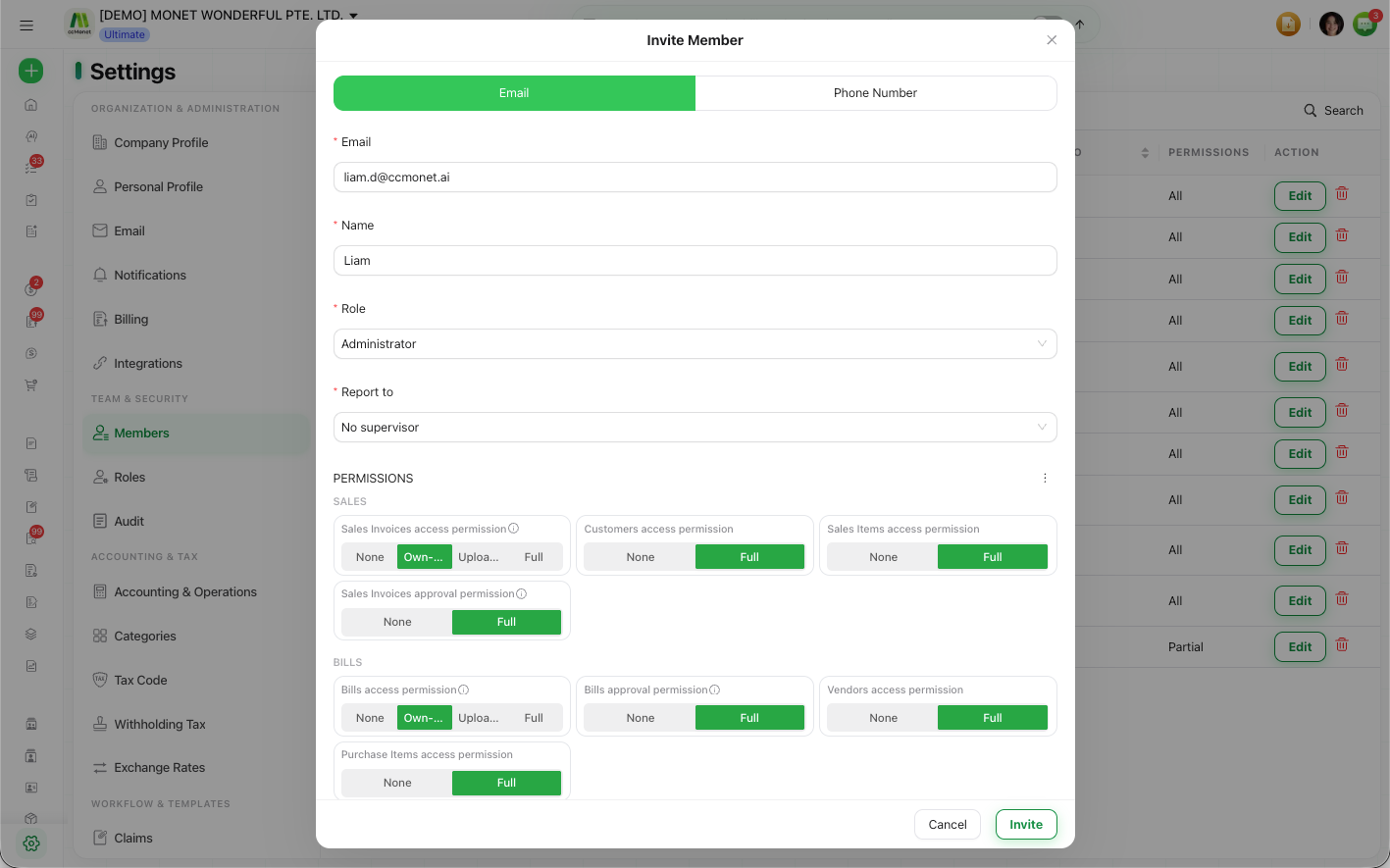
Add the person's email and choose the role they should have. ccMonet emails them an invitation to join. You can resend an invite that hasn't been accepted, and remove a member later.
Invite your accountant
Invite your external accountant or bookkeeper the same way. Give them a custom role (see below) scoped to the access they need — or Administrator if they'll help run the organization — so they can work without you handing over full ownership.
What each role can see and do
ccMonet comes with a few built-in roles. Assign one of these, or a custom role you've created:
| Role | Typical use |
|---|---|
| Owner | Full control of the organization, including billing and org settings |
| Administrator | Manages members, settings and day-to-day operations |
| Employee | Limited access, often to their own data (e.g. their own claims) |
| Custom role | The exact per-module access and approval permissions you define |
If none of the built-in roles fit, create a custom role under Settings → Roles with granular per-module access and approval permissions. Each module can be set to No access, Upload only, Own-Data access (a member sees just the records they created), or Full access.