Getting Started
Welcome to ccMonet — set your business up right in your first week, then let AI keep your books current.
Welcome to ccMonet. This guide walks you, in order, through the handful of things worth setting up before you start entering data — so your reports are right from day one and AI can do the heavy lifting afterwards.
You'll spend most of the setup in Settings, and you'll return to Home to pick up where you left off. Home shows an onboarding checklist and a Quick Guide that mirror the steps below.
Your first-week setup checklist
Work through these in order. Each card opens a full guide for that step.
1. Confirm your company settings
Business details, functional (base) currency, fiscal year end, and tax registration.
2. Set up your Chart of Accounts
Review your categories (accounts) and enable them for AI matching.
3. Enter opening balances
If you're migrating, bring in your starting balances or a trial balance.
4. Import your data
Bring in customers, vendors, products and historical fixed assets.
5. Invite your team & accountant
Add members, assign roles, and give your accountant access.
Once setup is done, the day-to-day rhythm is upload documents, then reconcile your bank — see Banking & Reconciliation.
A quick tour of the interface
Home
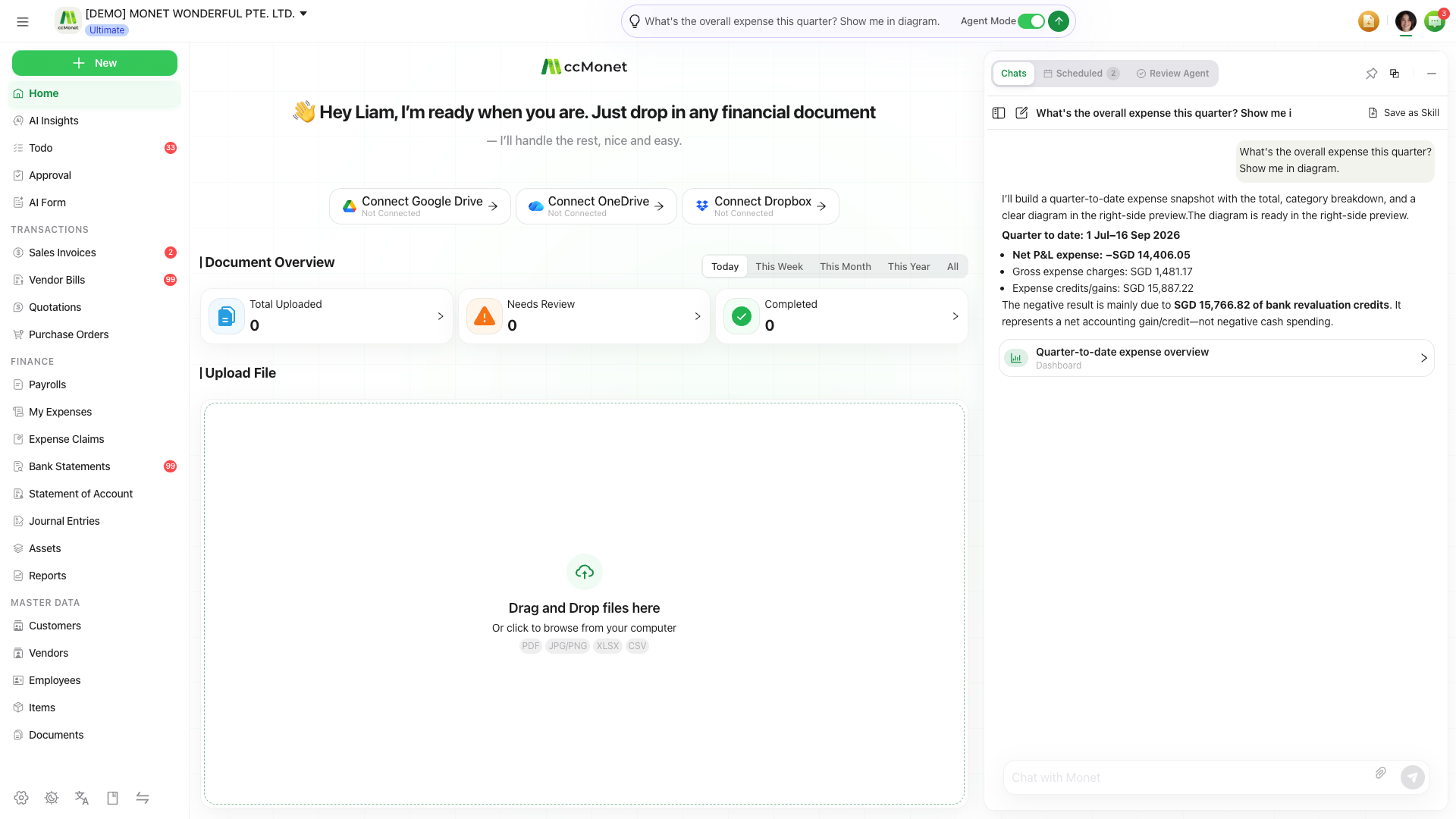
Home (the top item in the left sidebar) is your landing page. It shows entry cards, your recent uploads and history (receipts, statements, quotations, statements of account, contracts and more), cloud-drive shortcuts, and the onboarding checklist. The Quick Guide here walks through the overall flow: Setup → Data Entry → Reconciliation → Reports.
The sidebar
The left sidebar is your main navigation — Sales Invoices, Vendor Bills, Expense Claims, Bank Statements, Reports, Customers, Vendors, Items and Settings. A Todo entry collects action items the system detects for you (pending approvals, duplicates, missing statements, reminders), with an unread count.
Settings
Almost everything in this guide lives under Settings — your company profile, currency, fiscal year, Categories (Chart of Accounts), members and roles, and integrations.
Monet, your AI assistant
Monet is the built-in AI assistant. You can open it as a floating window or dock it to the sidebar, and it can read the page you're on to help draft records, answer questions and generate reports.
You don't have to finish everything before you start using ccMonet. Confirm your company settings first (they're hardest to change later), then come back to the other steps as you go.