Import your data
Bring your existing customers and vendors into ccMonet and record the fixed assets you already owned. Products and items need no import — they appear automatically as ccMonet reads your documents.
Getting your existing information into ccMonet is lighter than it sounds — most of it arrives on its own. You only really import two things by hand: your customers and vendors (optional), and the fixed assets you already owned. Your products and items don't need importing at all — ccMonet creates them as it reads your bills and invoices.
- Your Chart of Accounts is set up, so imported records can be coded to the right accounts.
- For contacts: a spreadsheet export from your previous system, or the documents you'll upload.
Bring in your lists
Import customers and vendors (optional)
You don't have to import contacts — ccMonet creates a customer or vendor automatically the first time it recognizes a document for them. To load them up front, go to Customers or Vendors (in the left sidebar under Master Data) and choose Import & Recognize: upload an Excel, CSV, PDF or image and AI extracts the records for you to review before saving.
Record historical fixed assets
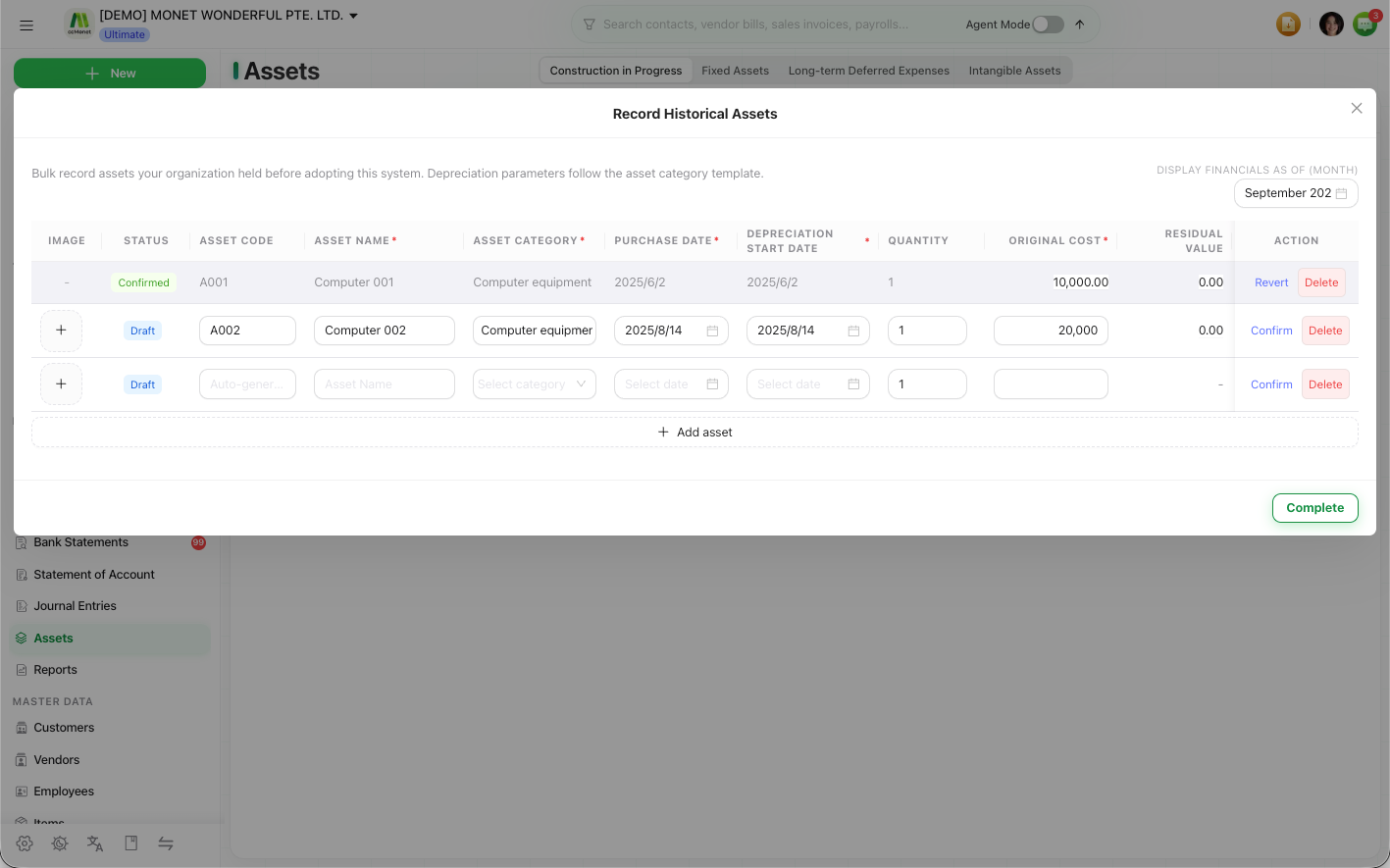
If you owned assets before moving to ccMonet, record them so your asset register and depreciation are complete from the start. In the left sidebar under Finance, open Assets, then in the Assets header click Record Historical Assets. See Record the fixed assets you owned before using CCMonet.
Products and items need no import. As ccMonet recognizes your bills and invoices, it creates the items on them automatically — so your item list builds itself as you work. See Manage products.
Let AI do the data entry
Many import and record forms offer Fill in with AI: upload, paste or drag in a file, and AI extracts the field values for you. You then review a before/after comparison and choose whether to apply the results — so you're always checking AI's work before it's saved.
The Home page also has a one-click document upload (drag and drop, or Upload File) that runs the same recognition engine — a quick way to drop in a document and let ccMonet structure it.
Importing customers and vendors is master data — it doesn't touch your ledger. Historical fixed assets are different: their original cost, accumulated depreciation and in-use date feed your accounts and future depreciation, so take those figures from your prior records and confirm them with your accountant. Your outstanding customer and supplier balances aren't imported here — you bring those in with your opening balances, where each is backed by an opening invoice or bill for accurate ageing.