Set up your Chart of Accounts
Review your Categories (Chart of Accounts), add or edit an account, and enable accounts for AI matching.
Your Categories are ccMonet's Chart of Accounts — the list of accounts used to classify every transaction, journal and report. ccMonet starts you with a default set; this step is about reviewing it and tailoring it to your business.
Your chart sorts every account into the five elements of the IASB Conceptual Framework — assets, liabilities, equity, income and expenses — which is what lets ccMonet build your Profit & Loss and Balance Sheet. Your Category class sets the taxonomy the chart follows (Simplified / IFRS / GAAP / Detailed Specialty); choose IFRS if you report under IFRS. See Manage your Categories for the full picture, including control accounts. The right structure for your entity is a judgment for your accountant.
Categories are managed by the organization Owner.
- Open Settings → Categories.
Review and adjust your accounts
Review the default chart
Open Settings → Categories and look through the accounts already there. The category list drives the category pickers you'll see throughout the app when coding invoices, bills and journals, so it's worth a scan before you start entering data.
Add or edit an account
Add a new category for an account you need, or edit an existing one. Use the search/filter to find an account quickly in a long list.
Enable an account for AI matching
When AI recognizes a document it only chooses from categories that have AI Match switched on — a category with AI Match off never appears in AI match results (you can still pick it by hand when coding). Turn AI Match on for the accounts AI should use and off for the rest; at least one category must stay enabled.
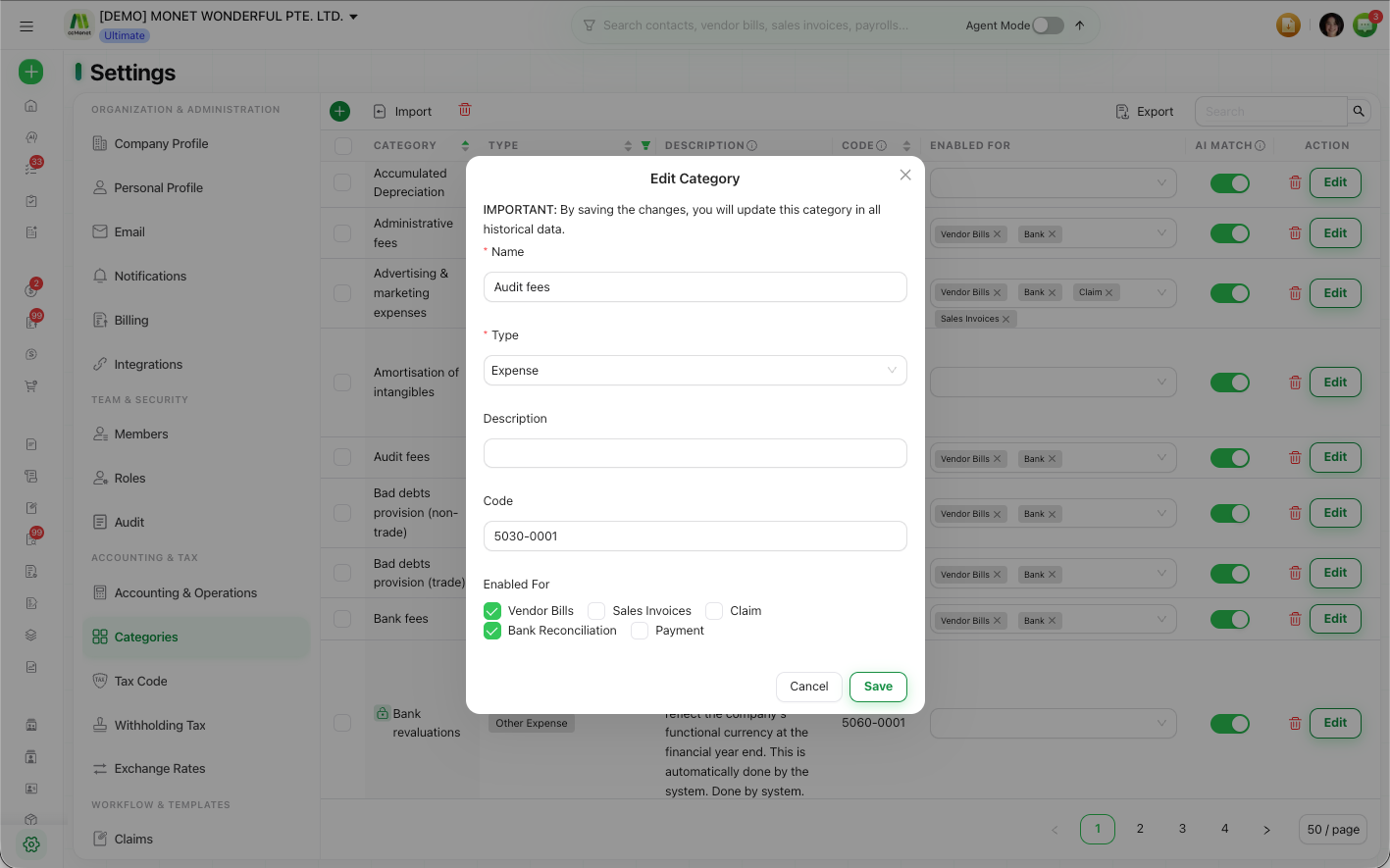
Each category has an account type, and that type determines how the account is classified in the Profit & Loss, Balance Sheet and other reports, and how transactions post to the ledger. ccMonet ships a sensible default chart; before you restructure it or change an account's type, confirm the structure with your accountant so your reports classify correctly.
Two options worth knowing when you add an account
- Enabled For — choose which modules can pick the account: Vendor Bills, Sales Invoices, Claim, Bank Reconciliation, Payment. The account only shows in a module's category picker if it's ticked here.
- Revalue Open Balance — for a monetary account held in one foreign currency (available on the Other Current Asset, Non-current Asset, Other Current Liability, Long Term Liability types). Tick it, pick a Source Currency, and ccMonet revalues the balance each report date into your FX gain/loss reports. Foreign-currency Bank/Credit Card and Revalue accounts are held in that currency, so you record their opening balance in the source (foreign) currency in the Conversion Balance.
Both are covered in full in Manage your Categories (Chart of Accounts).