Enter your opening balances
Set your opening (conversion) balances or import a trial balance when migrating to ccMonet, and check it balances.
If you're moving to ccMonet from another system, your accounts don't start at zero — they carry balances from before. Opening balances (also called conversion balances) bring those starting figures in, so your Balance Sheet and Trial Balance are correct from your first day in ccMonet. If you're starting a brand-new business with no prior balances, you can skip this step.
Opening (conversion) balances are your opening statement of financial position — the assets, liabilities and equity you carry into ccMonet at the conversion date, the same idea IFRS uses for the opening balance sheet an entity prepares when it first adopts IFRS (IFRS 1). They must obey double entry — total debits equal total credits — with the balancing figure in equity / retained earnings. This guide shows how to enter them in ccMonet; the figures themselves should come from your accountant or your prior system's trial balance as at the conversion date.
- Your company settings and fiscal year are confirmed.
- Your Chart of Accounts is set up.
- You have your closing balances (or a trial balance) from your previous system as at your conversion date.
Enter opening balances
Open Conversion Balance
In the left sidebar, under Finance, open Reports, then click Conversion Balance button on top-right corner to open the opening-balance setup.
Pick your conversion date and fiscal year
Set the conversion (end) date — the date your balances are as at — and the fiscal year they belong to. This is the point from which ccMonet takes over your books.
Enter or import your balances
Type the opening balance for each account, or bring them in at once:
- Import a trial balance — upload your trial balance from your previous system and map it to your accounts.
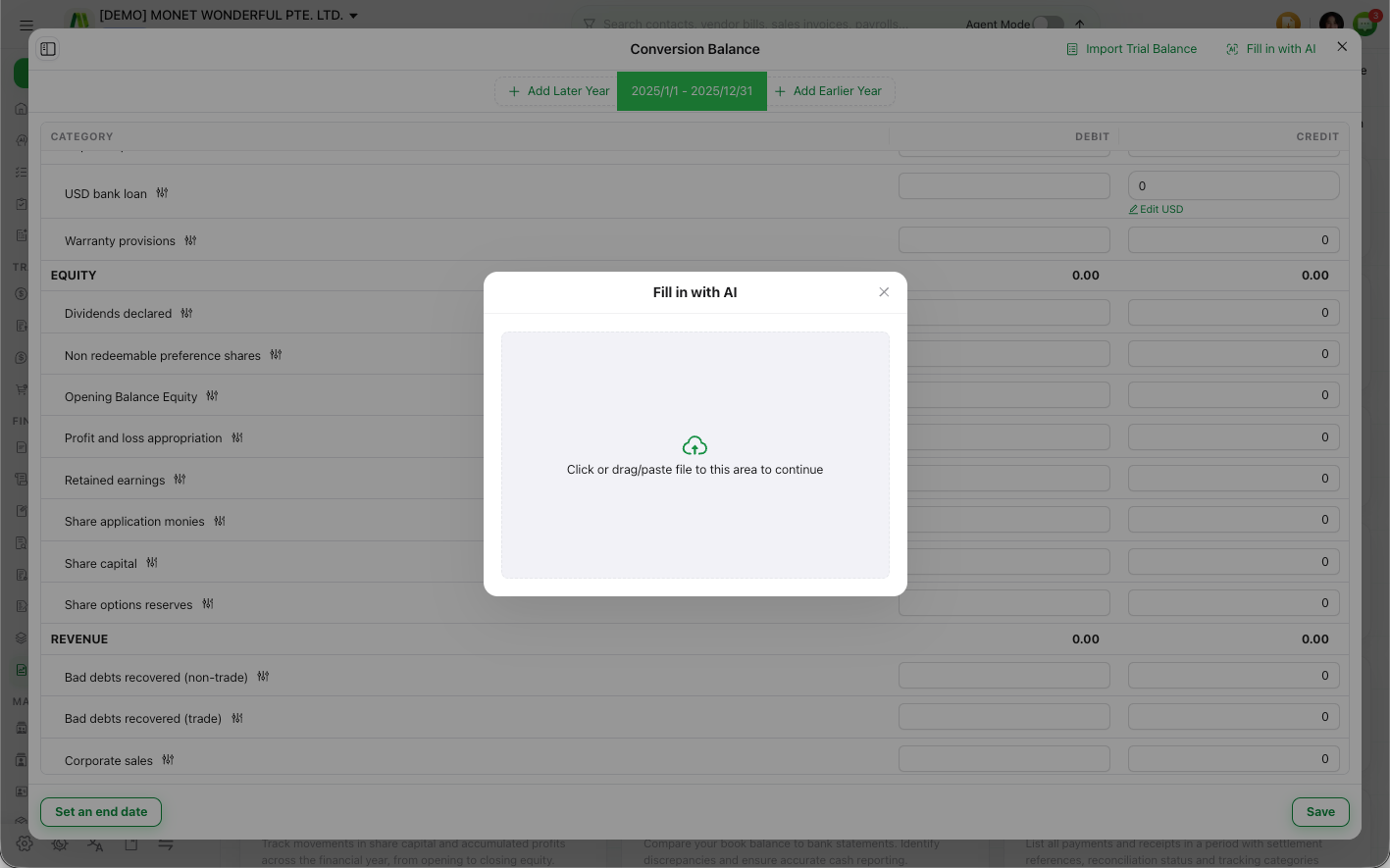
- Fill in with AI — upload a file and let AI extract the balances, then review before applying.
Check it balances
ccMonet flags the year as Not Balanced and shows the Difference if your entries don't add up — total debits must equal total credits. Resolve any imbalance before you finish, so your opening position is balanced.
Match your outstanding receivables and payables
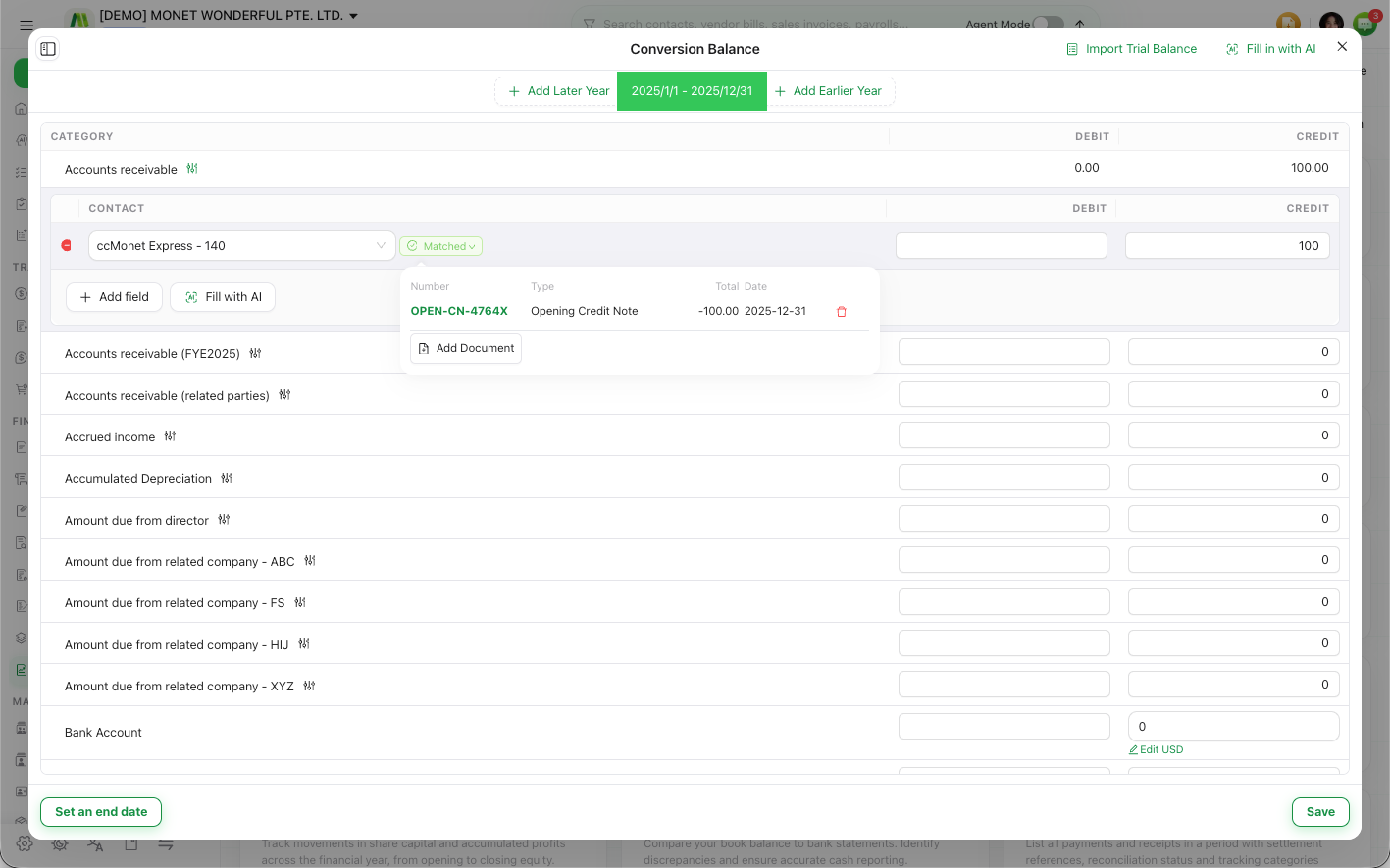
If you're migrating a business that already has unpaid customer invoices or supplier bills at your conversion date — i.e. you've been trading before this, not a brand-new first year — don't stop at a single lump sum for Accounts Receivable and Accounts Payable. On each AR/AP row, pick the Contact (customer or vendor) and break the balance down per contact. That's what makes your aged receivables / payables reports accurate from day one — and it's why each contact's amount has to be backed by a document.
Each contact row then shows an alignment badge:
- Matched — the contact's opening balance is fully backed by documents.
- Needs Match — there's a Difference between the balance and the documents behind it.
Open the badge and use Add Document to back the balance:
- The original document exists — an outstanding vendor bill or sales invoice already in ccMonet (dated on or before the conversion date) backs the balance automatically and shows as Booked.
- You can't find the original — create an opening document instead. Enter the total (tax inclusive), the document date (it may be earlier than the conversion date — it only sets the ageing bucket), a due date, and a document number (auto-generated, editable). Pick the type by side:
- Customer (receivable) → Opening Invoice, or an Opening Credit Note to reduce it.
- Vendor (payable) → Opening Bill, or an Opening Debit Note to reduce it.
Keep adding documents until every contact reads Matched. You can still save with a contact left unmatched (ccMonet asks you to confirm), but aim for all Matched so your ageing ties out. Once it does, consider setting a Lock Date (Settings → Accounting & Operations) so the aligned opening position can't be changed by accident.
The opening bills and invoices you create here are real outstanding documents — they appear in your Vendor Bills and Sales Invoices lists (their amount is locked and managed from Conversion Balance). So a migrated receivable or payable behaves like any other: you can later record a payment against it and reconcile it against your bank, and it clears out of your ageing exactly like a document raised in ccMonet.
Opening balances feed the starting position of your Balance Sheet and Trial Balance. Once entered, an opening-balance entry is managed here in Conversion Balance — you adjust it from Reports → Conversion Balance rather than editing it as an ordinary transaction.