Manage your contacts
Work with customers and vendors as master records — details, tags, active status, and payment or remittance information.
A contact is a customer or a vendor stored as a reusable record. Because invoices, bills, quotations and statements all point back to a contact, keeping each one accurate and stored once means your reports and balances add up.
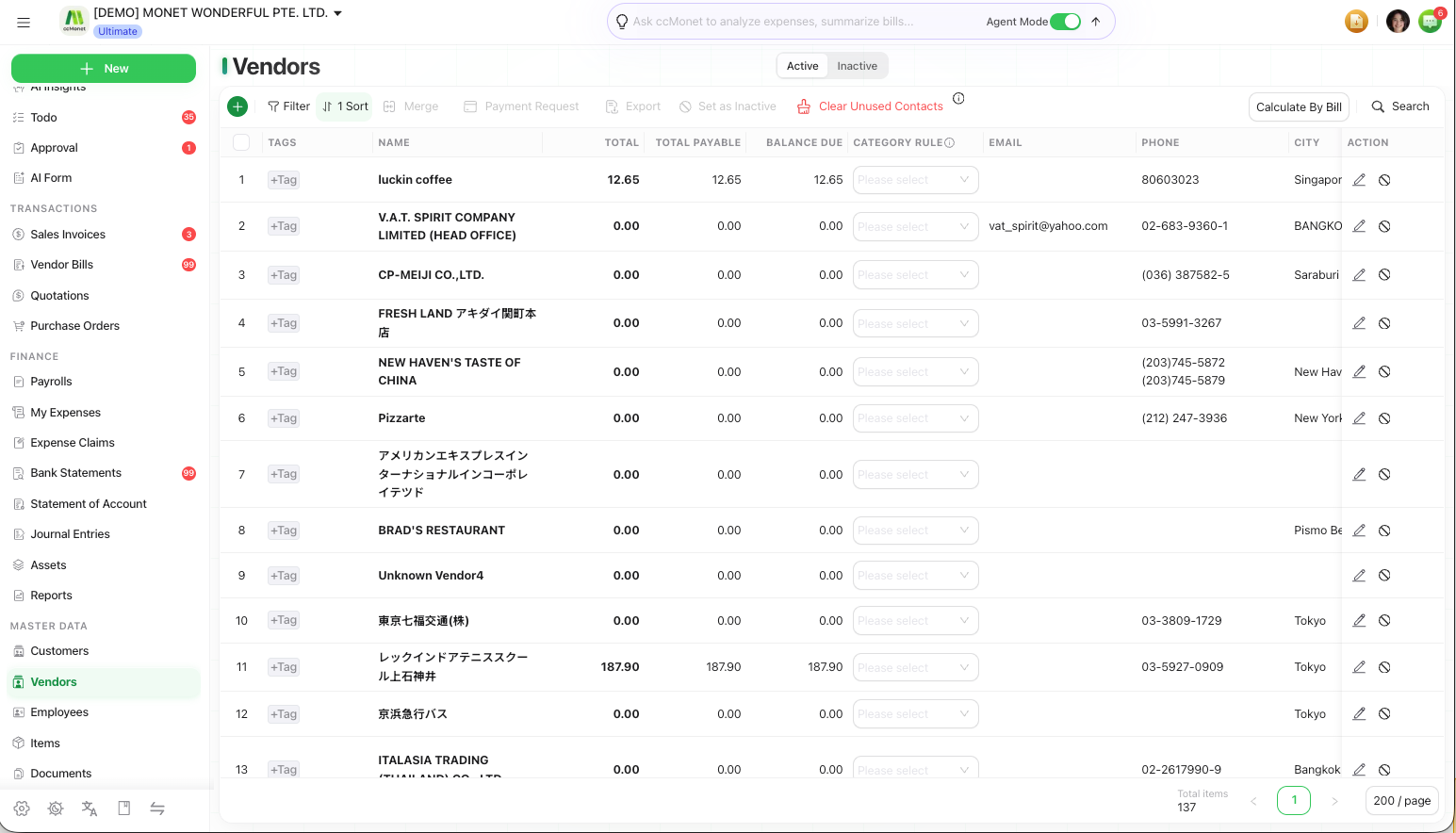
Customers and vendors share the same kind of record, shown in two places in the left sidebar under Master Data:
- Customers
- Vendors
What's on a contact record
Each contact holds the details CCMonet reuses across your documents:
| Field | What it's for |
|---|---|
| Name | The customer or vendor name shown on documents |
| Category Rule (vendors only) | A default categorization rule applied to the vendor's transactions |
| Email & phone | Used when emailing invoices, statements or purchase orders |
| Address | Billing / company address on documents |
| Tags | Free labels to segment and filter your list |
| Active / inactive | Whether the contact appears in pickers for new records |
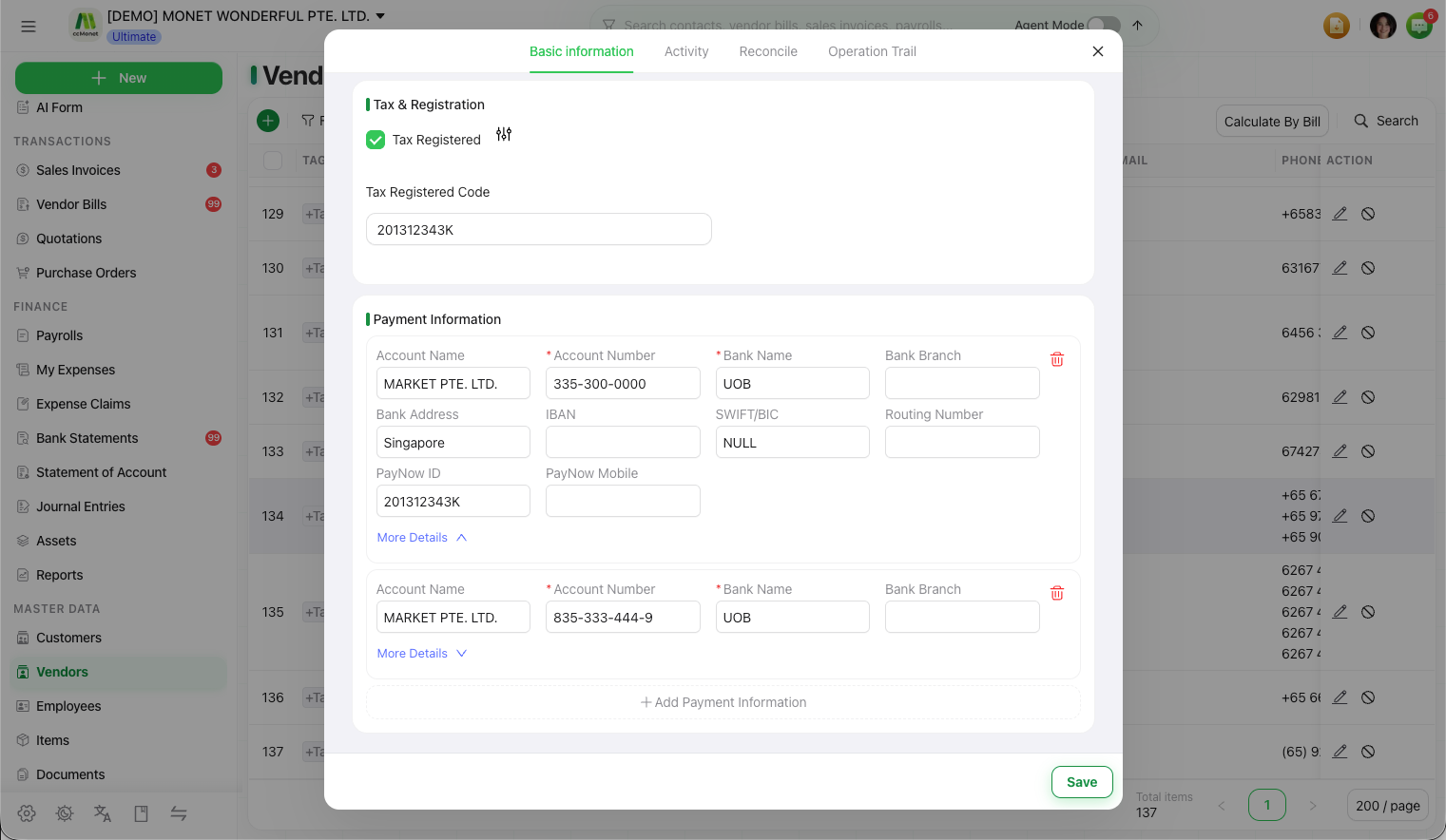
| Payment Info | Bank / remittance details used to get paid or to pay the vendor |
Add or edit a contact
Open the list
In the left sidebar, under Master Data, open Customers or Vendors.
Add or open a contact
Select the + button to add a new contact, or click an existing row to open its detail and choose Edit.
Fill in the details
Enter the name, email, phone and address. For a vendor you can also set a Category Rule. Add tags if you want to group or filter this contact later.
Save
Save the record. The contact is now available to pick when you raise an invoice, bill or other document.
You can also add a contact on the fly while creating an invoice or bill — CCMonet saves it back to the same master list, so there's no separate copy to keep in sync.
Set a contact active or inactive
When you stop dealing with a customer or vendor but want to keep their history, set the contact inactive instead of deleting it. Inactive contacts stay on past documents and reports but no longer clutter the pickers for new records. Reactivate a contact at any time to bring it back.
For removing contacts entirely, see Clean up unused contacts.
Store payment and remittance information
Open a contact and use Payment Info to store the bank or remittance details CCMonet reuses:
- For a customer, these are the details shown so they can pay you.
- For a vendor, these are the payee details used when you pay or remit to them — you can also store a payment proxy for remittance.
Import contacts in bulk
To set up many contacts at once — for example when you first move to CCMonet — use Import & Recognize. Upload an Excel, CSV, PDF or image and AI extracts the customer or vendor records for you to review before saving. To take your list back out again, see Export your contact list.