Split a product into separate items
Break one over-grouped product back into distinct products when different things ended up under a single record.
Sometimes a product ends up covering more than one real thing — different items were recognized under similar names and grouped together, or a merge went too far. Splitting separates those variants back out into their own products, so each thing is tracked on its own again.
- You're on the Items catalog, under Master Data in the left sidebar.
- You've identified a product that actually represents two or more different things.
Split a product
Open the product
In the catalog, open the product that's grouping different things together.
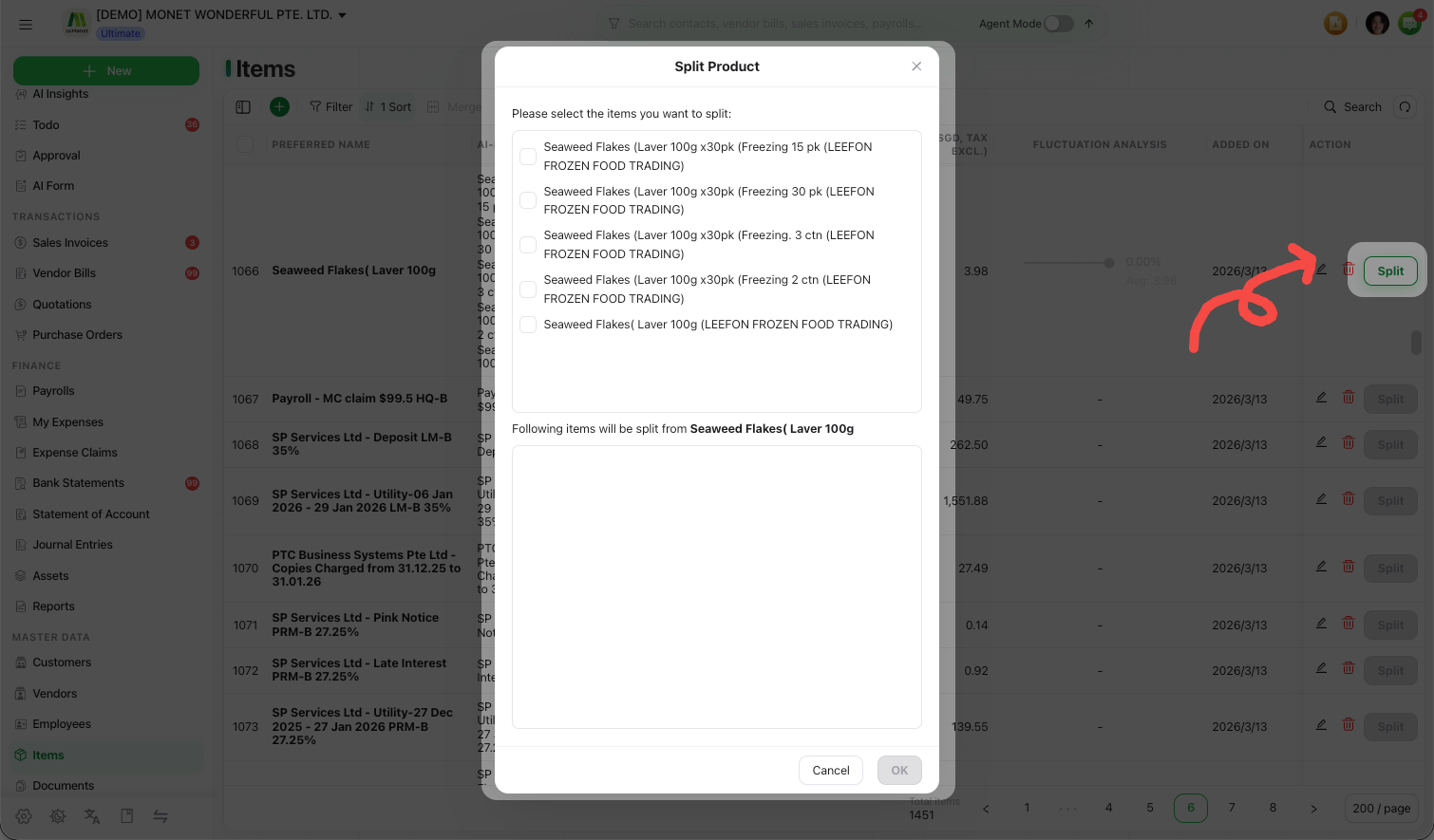
Choose Split
Select Split. CCMonet shows the recognized names and items grouped under this product.
Separate the variants
Tick which recognized names or items should move out into a separate product. The ones you leave unticked stay with the original.
Confirm
Confirm the split. The items you moved out now belong to a distinct product with its own history and price tracking.
Split is the counterpart to Merge. If you grouped names that turned out to be different products, split fixes it; if you have the same product under several names, merge is what you want.