Merge duplicate contacts
Combine two records for the same customer or vendor into a single contact so their history stays in one place.
Duplicates happen — the same customer typed slightly differently, or a vendor created twice by AI recognition. When one real contact is split across two records, their invoices, bills and balances are split too. Merging combines them into one record so the history lives in one place.
- You're on the Customers or Vendors list, under Master Data in the left sidebar.
- You've confirmed the two records really are the same contact.
Merge two contacts
Select the duplicates
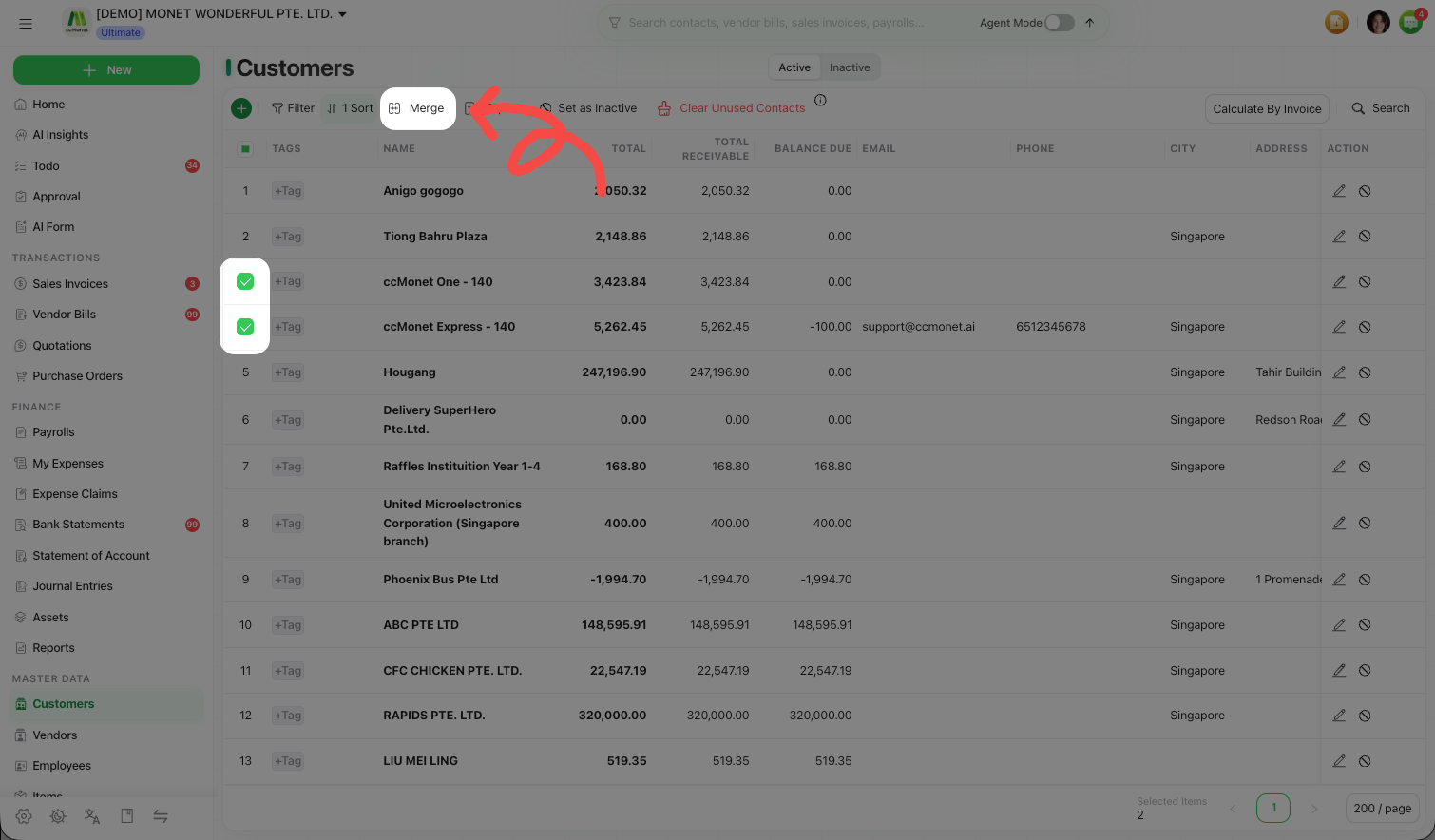
On the contact list, select the two records that are the same contact.
Open Merge
Choose Merge. CCMonet asks which record to keep — the primary contact that survives the merge.
Pick the record to keep
Choose the contact whose name and details you want to keep. The other record's linked documents move onto the one you keep.
Confirm the merge
Confirm. The duplicate is absorbed into the primary contact, and everything that pointed at it now points at the surviving record.
Merging cannot be undone. Make sure the two records really are the same customer or vendor before you confirm — check their linked invoices or bills if you're unsure.
Find duplicates to merge
CCMonet's Todo list surfaces likely duplicate customers and vendors automatically, so you don't have to hunt for them. Working through those prompts is the quickest way to catch duplicates early — before they spread across more documents.