Reassign or move an asset
Reassign an asset to a different asset category, move it between tracking categories on a movement date, and review its movement history.
There are two ways to relocate an asset in CCMonet, and they do different things:
- Reassign changes the asset's category — for example moving it out of one asset class into another.
- Move changes the asset's tracking category — a reporting dimension such as a department or location — and keeps a dated history.
Reassign an asset to a different category
Open Reassign Asset
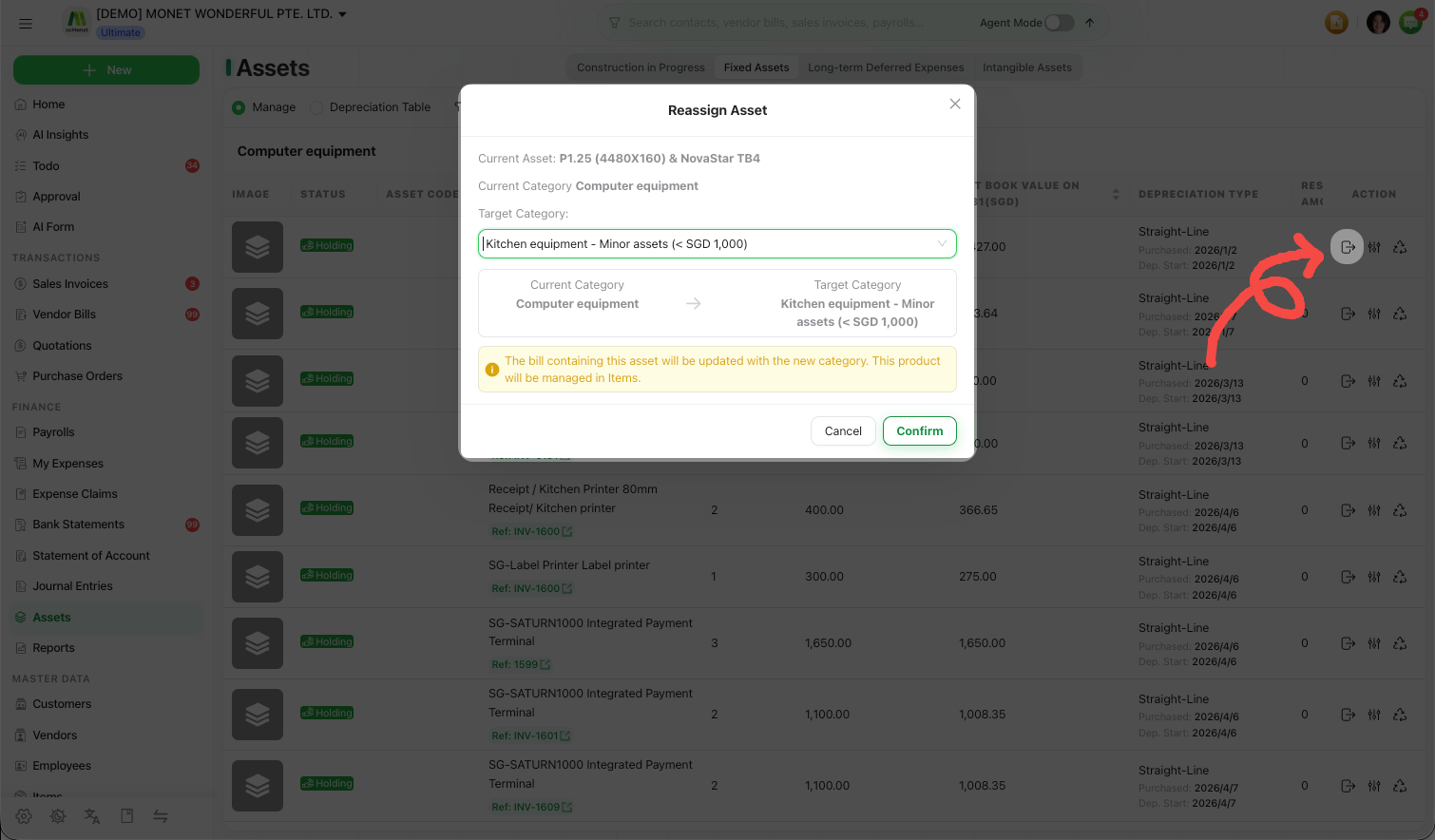
On the asset's row Action menu, select Reassign Asset. The modal shows the Current Asset and its Current Category.
Pick the target category
Choose a Target Category. You must select one before you can confirm.
Confirm
Select Confirm. CCMonet reclassifies the asset to the target category.
Reassigning updates the bill that contains this asset with the new category, and the product is then managed in Items. Because of this link back to the source bill, reassign is a reclassification, not just a label change.
Move an asset between tracking categories
Open Move Asset
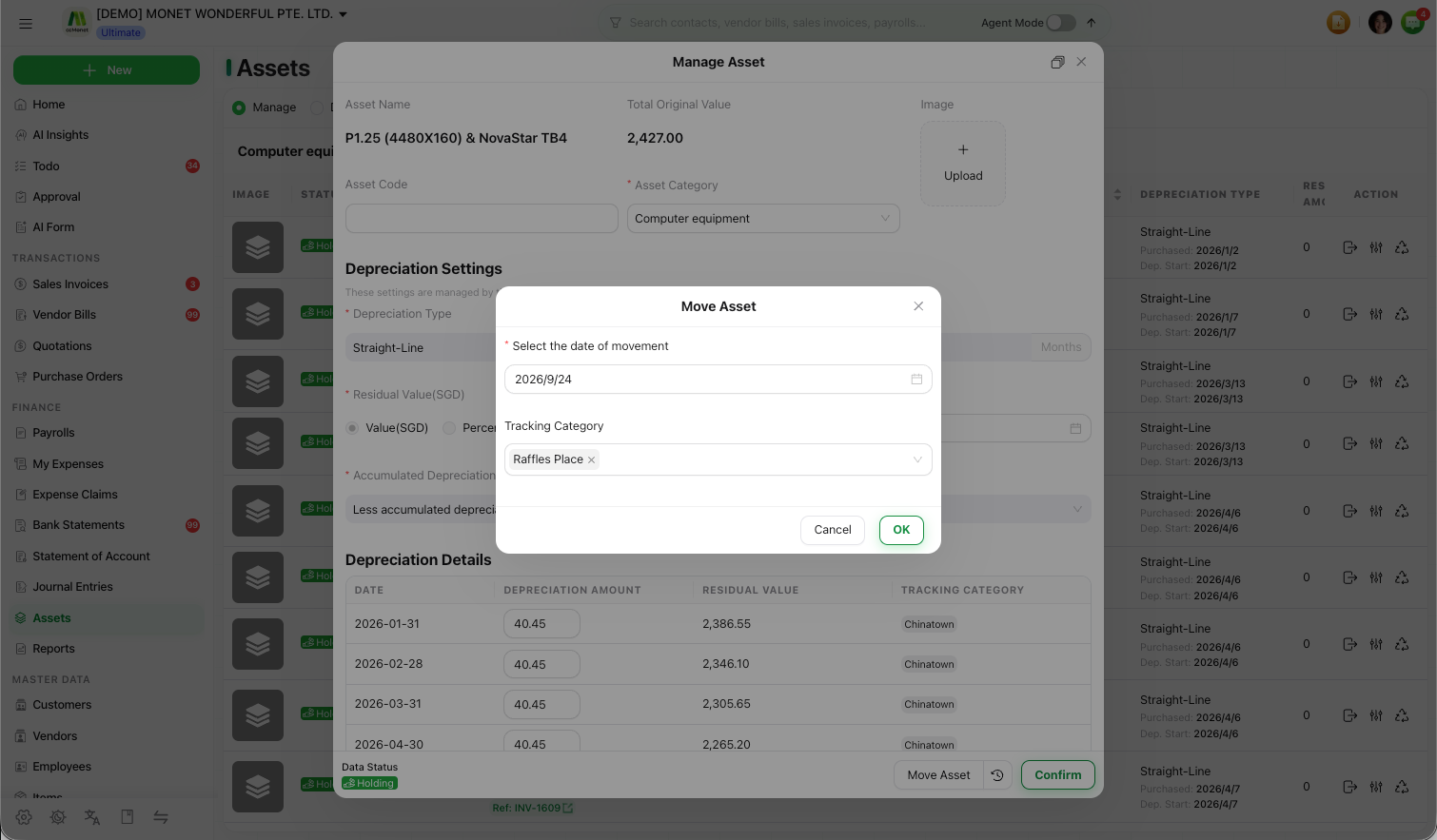
Start the Move Asset flow for the asset.
Set the From, To and date
The move records a From Tracking Category and a To Tracking Category, and you select the date of movement.
Save the move
Confirm to record the movement. The move is added to the asset's history in date order.
Review movement history
Open Move History for an asset to see its tracking-category movements over time — each entry's from/to categories and movement date. This is where you check where an asset has been assigned and when it changed.
Reassigning an asset changes its category (and updates the linked bill), while moving an asset changes its tracking category for reporting. Whether either action results in an accounting reclassification in your ledger depends on your setup — confirm the effect on your accounts and reports with your accountant.