View your fixed asset register
Browse fixed assets by category in the Manage view, read each column, and open the bill an asset was recognized from.
The fixed asset register lists every asset CCMonet is tracking, grouped by category. Open it from the left sidebar under Finance → Assets. The Manage view (the default) is your working list; the Depreciation Table view is covered in Read the depreciation table and net book value.
Find your way around
Pick an asset category
The tab strip across the top switches which category you're looking at — Construction in Progress, Fixed Assets, Intangible Assets and Long-term Deferred Expenses. Each tab shows only the assets in that category.
Stay on the Manage view
Use the Manage / Depreciation Table toggle to choose the view. Manage shows each asset's core details and the row actions.
Search and filter
Use the search box to find an asset by name, and the filter to narrow the list. Configure Asset Type and Record Historical Assets also live in this header.
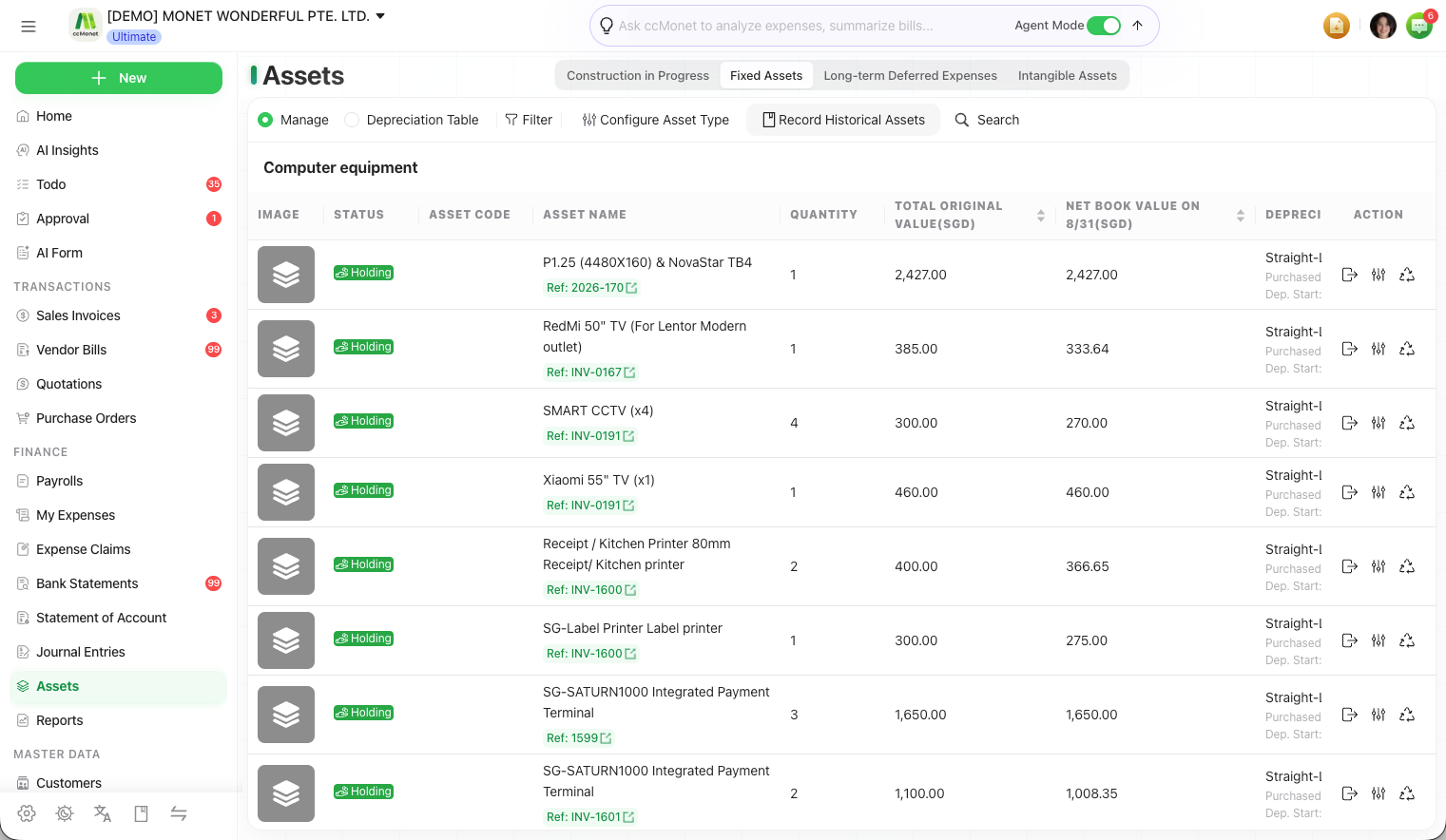
What each column tells you
| Column | Meaning |
|---|---|
| Asset Code | The asset's identifier (auto-generated or entered). |
| Asset Name | The asset's name, with a Ref link to its source bill (see below). |
| Status | The asset's status — for example, disposed assets are flagged here. |
| Quantity | How many units the record covers. |
| Total Original Value | The original cost, in your organization currency. |
| Net Book Value on (date) | Original value less accumulated depreciation as at the shown date. |
| Depreciation Type | Straight-Line, Double Declining or No Depreciation, with the Purchased and Dep. Start dates. |
| Residual Value | The residual amount or percentage set by the category. |
| Estimated Useful Life (Month) | Depreciation period in months. |
| Accumulated Depreciation Category / Depreciation Expense Category | The GL accounts the category posts to. |
| Tracking Category | The tracking dimension the asset is assigned to, if any. |
Find which bill an asset came from
Assets are recognized from confirmed vendor-bill line items, so every system-generated asset points back to a bill.
Look for the Ref on the asset
In the Asset Name column, an asset that came from a bill shows Ref: (invoice id). Manually recorded assets have no Ref.
Open the source bill
Click the Ref link to open that bill's detail. From there you can review the original line items and amounts the asset was created from.
No Ref on an asset means it was entered by hand (for example through Record Historical Assets) rather than recognized from a bill.
Row actions
The Action menu on each asset row offers Reassign Asset, Manage Asset (edit its depreciation) and Dispose. See Reassign or move an asset and Dispose of a fixed asset.
CCMonet creates an asset from a confirmed bill line whose category is asset-typed, and the depreciation figures shown here follow that asset's category template. Whether a given purchase should be capitalized as an asset or expensed, and which category and accounts apply, is an accounting judgment best confirmed with your accountant.