Set up an asset category and its depreciation defaults
Configure the depreciation template for an asset category so bills are recognized as assets and depreciation runs, and fix incomplete configuration.
Depreciation in CCMonet is managed by category. Each asset category carries a depreciation template — a method, a useful life, a residual value, and the accounts to post to. Until a category is configured, bill lines that would become assets in that category are silently skipped, so this is the first thing to set up.
Depreciation spreads an asset's cost over the periods it's used, matching the expense to the benefit it produces. Under IAS 16 (property, plant and equipment) and IAS 38 (intangibles), depreciation or amortization runs systematically over the asset's useful life from when it's available for use, down to any residual value, using a method that reflects how the asset is consumed. The category template here — method, useful life, residual value and the posting accounts — is how CCMonet applies that; the right values for each asset class are a judgment for your accountant.
- You've opened Finance → Assets from the left sidebar.
- You know which chart-of-accounts accounts to use for accumulated depreciation and depreciation expense (ask your accountant if unsure).
Configure an asset category
Open Configure Asset Type
In the Assets header, select Configure Asset Type.
Select the categories to manage as assets
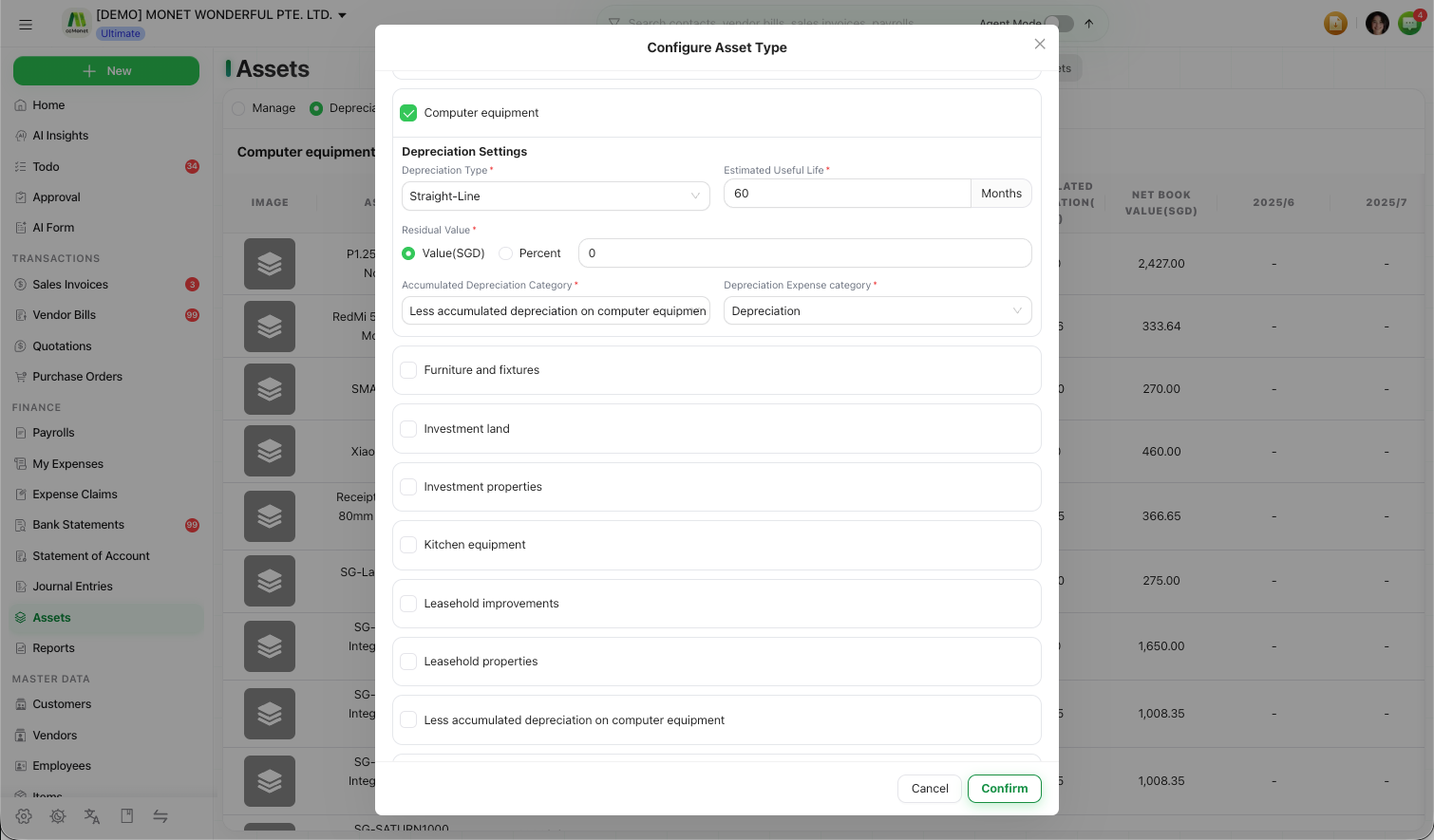
Tick the applicable asset categories. Ticking a category opens its depreciation template with default values you then complete.
Set the depreciation template
For each ticked category, set:
| Field | What it does |
|---|---|
| Depreciation Type | Straight-Line, Double Declining, or No Depreciation (indefinite life). |
| Estimated Useful Life (Month) | How many months to depreciate over. |
| Residual Value | The residual amount, entered as a Value or a Percent. |
| Accumulated Depreciation Category | The GL account that holds accumulated depreciation. |
| Depreciation Expense Category | The GL account depreciation expense posts to. |
Save
Select Confirm. CCMonet checks each ticked category has a residual-value type, an accumulated-depreciation account and a depreciation-expense account, then asks you to confirm the change before it saves.
Changing a category's template can update all existing assets in that category and recalculate their depreciation schedules. CCMonet warns you before applying such a change — read the prompt before confirming.
Fix incomplete configuration so depreciation runs
If required categories aren't fully configured, CCMonet blocks actions that depend on them (such as confirming imported historical assets) with an Asset Configuration Incomplete guard that lists what's missing.
Read the missing-configuration list
The guard names the categories still needing setup.
Choose Configure Now
Select Configure Now to jump straight into Configure Asset Type, complete the missing fields for each listed category, and save.
Retry the blocked action
Once every required category is complete, return to what you were doing — recognition and depreciation now run for those categories.
The depreciation method (straight-line, double declining or indefinite), the useful life and residual value you enter drive how much depreciation is calculated each period, and the two accounts you map determine where it posts. CCMonet applies whatever you configure — which method, life, residual value and accounts are appropriate for each asset class is an accounting decision to confirm with your accountant.