Record fixed assets you owned before using CCMonet
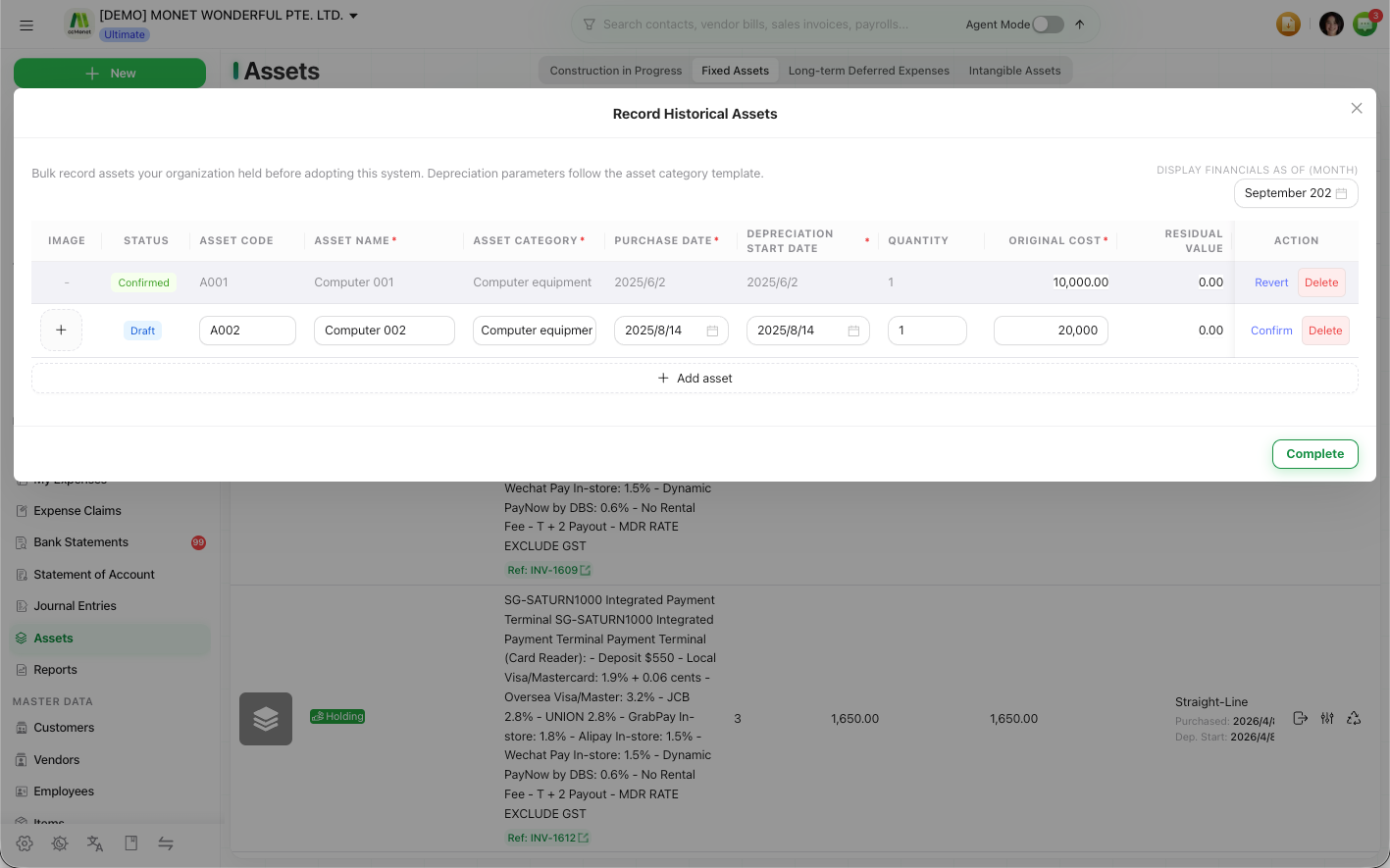
Bulk-record assets your organization already held before adopting CCMonet, choosing the financials-as-of month and following your category templates.
When you start using CCMonet you'll usually already own assets. Record Historical Assets is a bulk-entry workbench for those pre-adoption assets, so their depreciation continues in CCMonet from a point in time you choose.
- Your asset categories are configured — depreciation parameters follow the category template.
Record historical assets
Open Record Historical Assets
In the Assets header, select Record Historical Assets.
Set the financials-as-of month
Choose Display Financials As Of (Month). This is the point from which the historical figures are shown.
Add asset rows
Select Add asset for each asset and fill in its details. The asset code is auto-generated if you leave it blank, and the depreciation parameters follow the asset category template. You can also set a Tracking Category.
Confirm each asset, then Complete
Register each draft row with its Confirm action (use Revert to undo a row). Add at least one asset first; each row's original value must be greater than zero, and its depreciation start date can't be before its purchase date. When the rows are registered, choose Complete to close the workbench.
If a required asset category isn't fully configured, CCMonet blocks confirmation with the Asset Configuration Incomplete guard. Choose Configure Now to finish the setup — see Fix incomplete asset configuration — then confirm again.
The financials-as-of month and each asset's original value, purchase date and depreciation start date determine the opening asset balances and historical accumulated depreciation CCMonet records. These opening figures feed your ledger, so confirm the amounts and the as-of date with your accountant before registering.