Add a bank account
Create a bank account in CCMonet so you can upload its statements or connect a live feed.
Every statement and transaction in CCMonet belongs to a bank account. Add the account first, then bring its transactions in by uploading statements or connecting a feed.
- Your organization's currencies are set up (the account is created in one currency).
- You have the account details from your bank (name and account number).
Add an account manually
Open Bank Statements
In the left sidebar, open Finance → Bank Statements. The left side shows your account tree — every bank account you've added, grouped for selection.
Start a new account
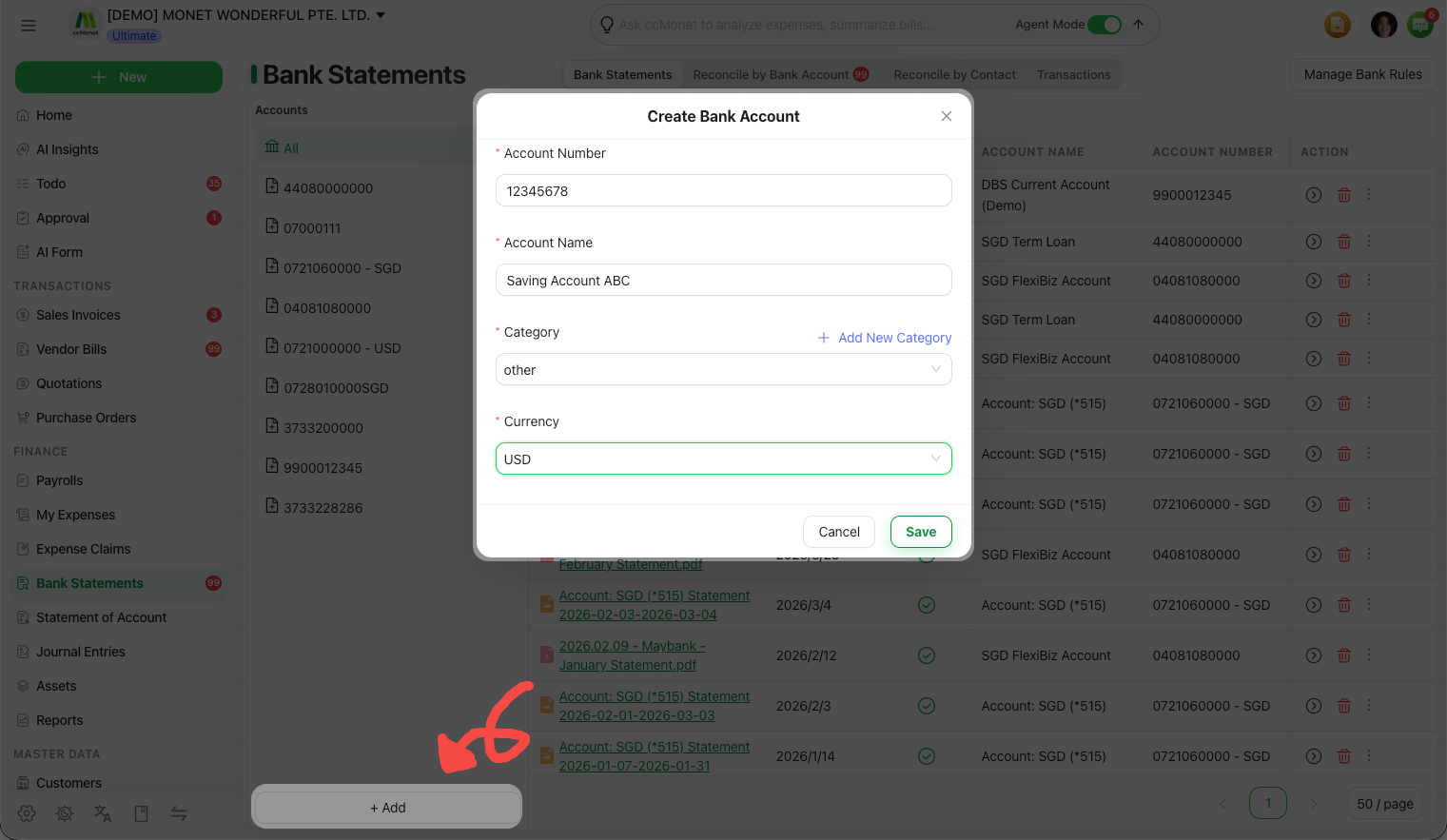
At the bottom of the account tree, open the Add menu and choose Add Manually. (To sync from your bank instead, see Connect a bank feed.)
Fill in the account details
In the account form, enter the account name, its currency, and the bank/account details. Save to create the account.
What's next
Your new account appears in the account tree with no transactions yet. Bring transactions in:
Upload a bank statement
Import a PDF, Excel, CSV or image statement.
Connect a bank feed
Sync transactions automatically.
The currency you choose for an account determines how its transactions are valued against your base currency during reconciliation. If you're unsure which currency or opening balance to use, confirm with your accountant before you start reconciling.