Reconcile bank transactions
Work through a bank account and match every transaction to the record it belongs to.
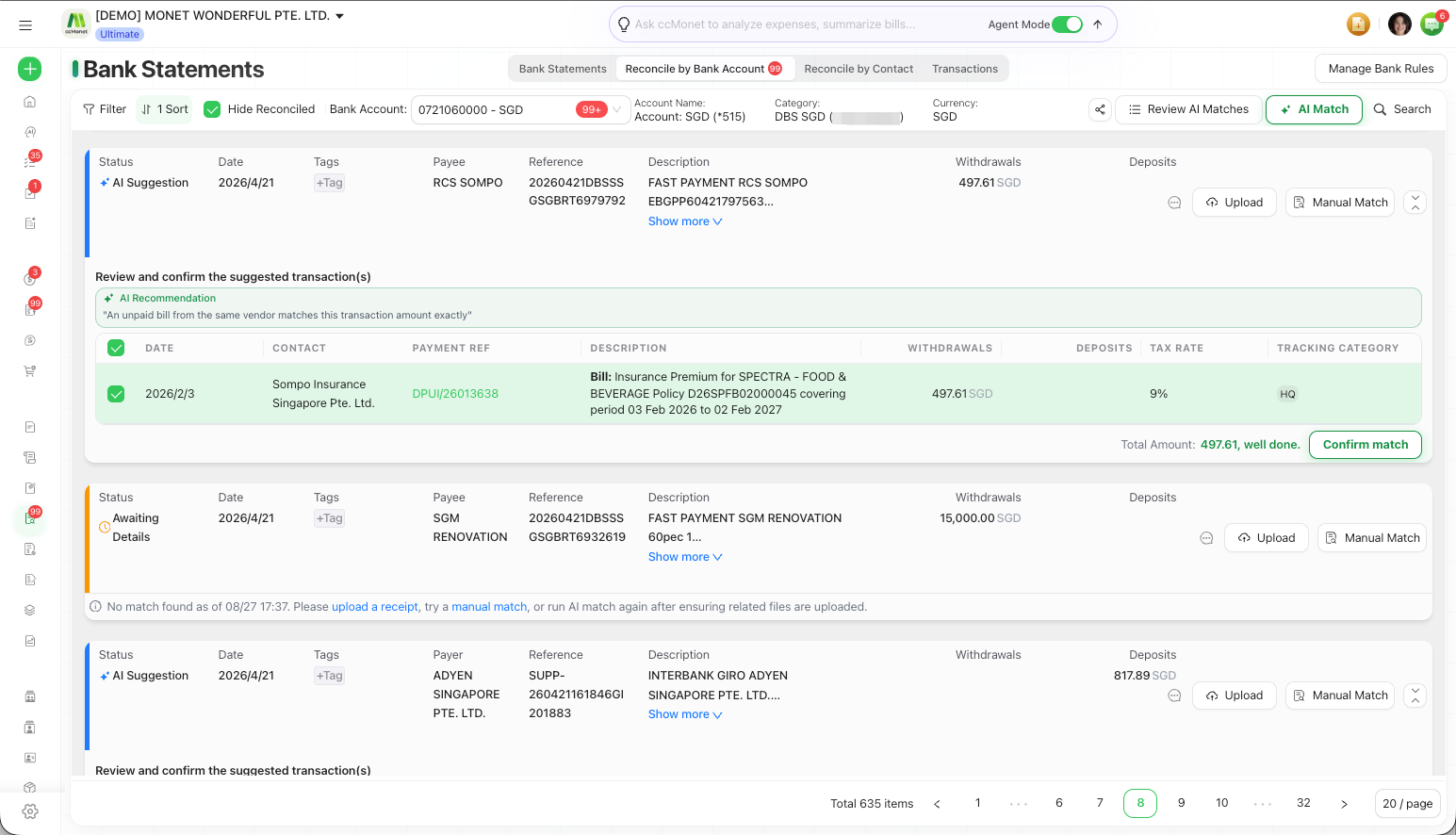
Reconciling is how each bank transaction gets connected to the invoice, bill or payment it represents, so your ledger matches the bank. The Reconcile by Bank Account tab is your workspace for doing this account by account.
- Transactions are in the account — either uploaded or synced from a feed.
Reconcile an account
Open the Reconcile by Bank Account tab
In the left sidebar, open Finance → Bank Statements → Reconcile by Bank Account. Pick the bank account you want to work on.
Let AI Match suggest matches
Run AI Match to have CCMonet propose the record behind each transaction. Review each suggestion and confirm or reject it — see Confirm or reject an AI-suggested match.
Match the rest yourself
For anything AI didn't match, open the transaction and match it manually to a bill, invoice or existing payment — see Match a transaction to a bill.
Keep going until the list is clear
Use Hide Reconciled to focus on what's left. A transaction leaves the to-do list once it's reconciled.
Other things you can do here
- Batch-confirm several AI matches at once.
- Unreconcile a transaction if you matched it to the wrong record.
- Share a reconcile task with a teammate so someone else can help clear the account.
- Reconcile by contact — start from a contact and clear their transactions and invoices together (the Reconcile by Contact view).
Confirming a match generates or links a payment in your ledger; unreconciling removes it again. What accounts those postings hit depends on the categories and contacts on the matched records. If you're setting up reconciliation for the first time, review the resulting entries with your accountant.