Match a transaction to a bill
Manually link a bank transaction to the bill, invoice or payment it settled.
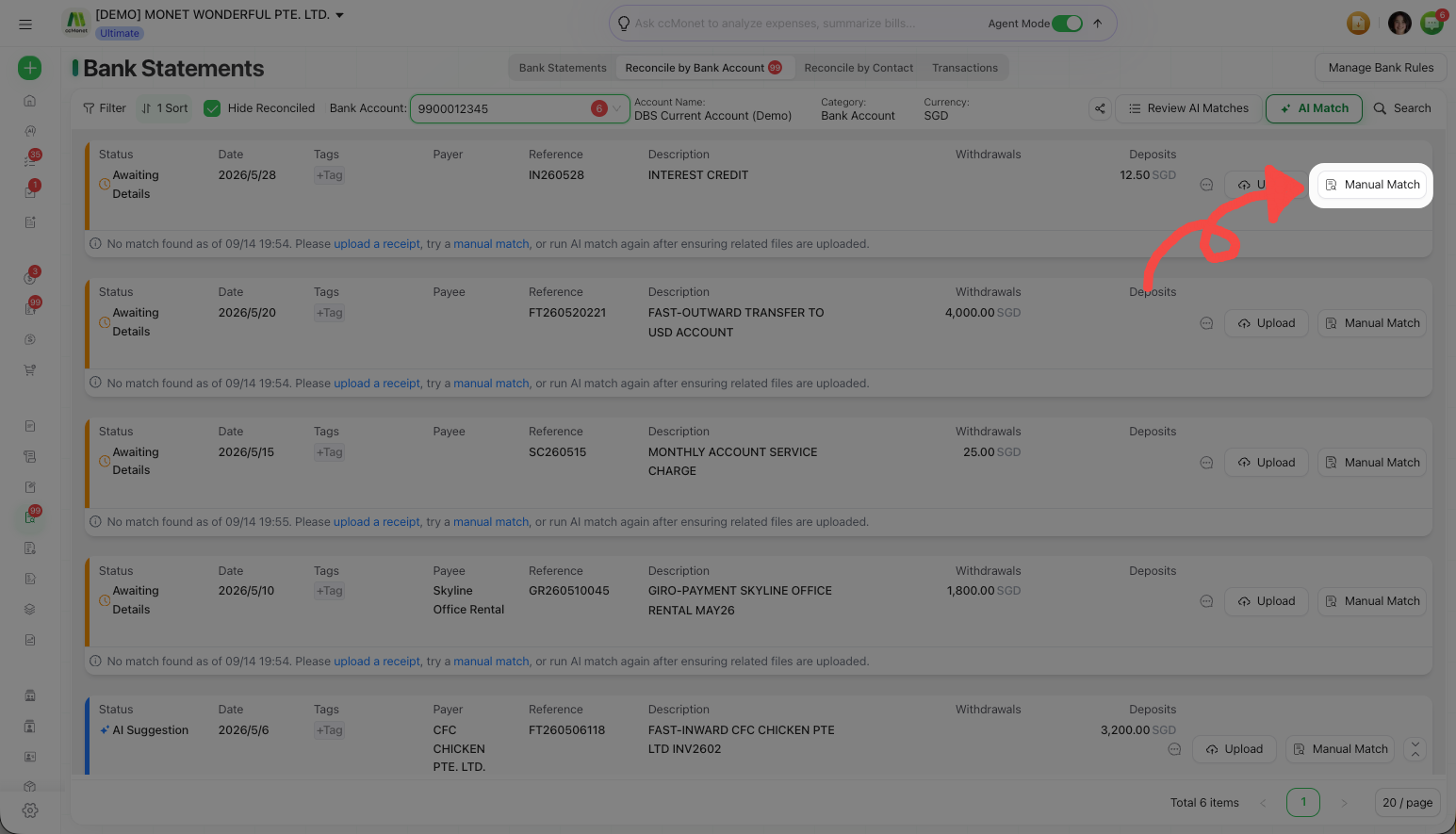
When AI Match doesn't find a match — or you'd rather do it yourself — you match a bank transaction by hand. This is done in the manual reconcile window, where you pick the bill, invoice or existing payment the transaction settled.
- You're on the Reconcile tab with a bank account selected.
Match a transaction
Open the transaction
Click a bank transaction to open the manual reconcile window.
Choose what it settled
Select one or more matching records:
- a vendor bill (money going out),
- a sales invoice (money coming in),
- an existing payment already recorded in CCMonet, or
- where applicable, an approved expense claim or payroll entry.
Check the amounts line up
CCMonet validates that the selected records add up to the bank amount before you can confirm. If a single payment doesn't exactly match, you can turn on Use bank amount so the payment takes the bank's actual figure.
Confirm the match
Select Confirm match. The transaction is now reconciled and disappears from the to-do list.
When there's no bill or invoice
Some transactions don't have a document behind them — a subscription, a transfer, interest. You can reconcile these without a bill or invoice by categorizing them as operating or non-operating, mark a transaction as an internal transfer (see Match an internal transfer), or create a payment right there in the window.
Matching to an existing bill/invoice links the payment that settles it; reconciling without a document instead creates a new entry against the category you choose. The Use bank amount option makes the payment equal the bank figure — useful when fees or rounding make the amounts differ slightly. How any difference (including foreign-currency differences) is treated in your accounts is best confirmed with your accountant; see also Add an adjustment while reconciling.