Connect a bank feed
Link your bank or payment provider so transactions sync into CCMonet automatically.
Instead of uploading statements by hand, you can link an account so its transactions sync into CCMonet automatically. Connected accounts show their last and next sync time and support Sync Now, Reconnect, changing the sync start date, and Unlink.
- You're an Admin or Accountant for the organization.
- For Stripe or Airwallex, you have the API credentials from that provider's dashboard.
Connect an account
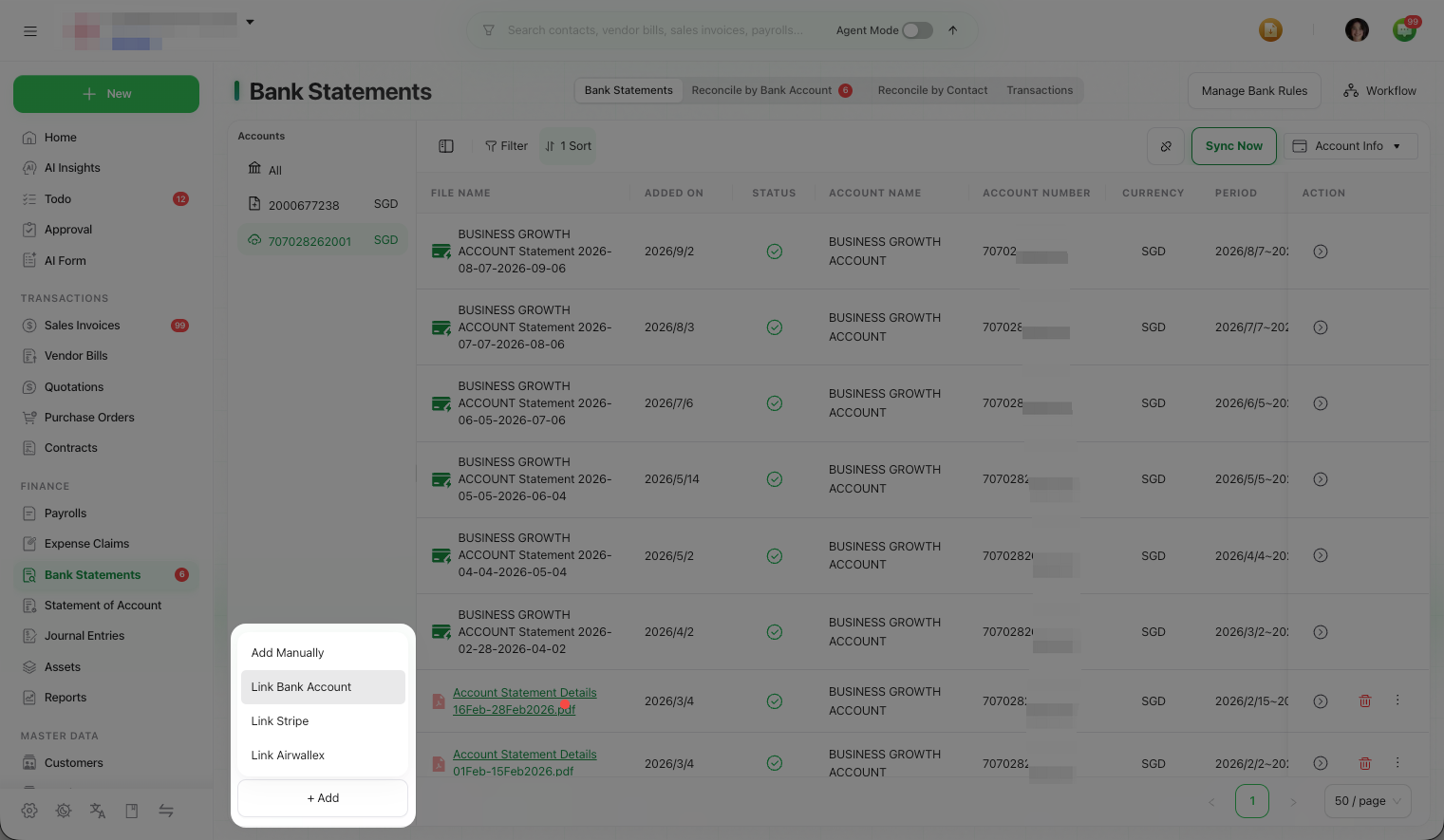
In the left sidebar, open Finance → Bank Statements and use the Add or Account Info menu on the account tree to start a connection. The option you get depends on the provider:
For a bank account, CCMonet opens the connection flow for your organization's supported provider (Plaid or Finverse — this is chosen for you). Follow the provider's window to select your bank and authorize access. Once authorized, transactions sync automatically.
Choose Link Stripe and paste a restricted API key from your Stripe dashboard. CCMonet then imports your Stripe payouts and transactions.
Only ever paste a restricted key with the minimum access needed. Create it in your Stripe dashboard — CCMonet never asks for your Stripe password.
Choose Link Airwallex and enter your Airwallex API key and client ID. Transactions then sync from Airwallex.
Manage a connected account
From the account's Account Info menu you can:
- Sync Now — pull the latest transactions immediately.
- Reconnect — restore a connection that has expired.
- Modify Start Sync Date — change how far back transactions are pulled.
- Unlink — stop syncing and keep the transactions already imported.