Upload a bank statement
Import a bank statement into CCMonet from a PDF, Excel, CSV or image — including multi-account PDFs.
When you don't have a live bank feed, you upload the statement your bank gives you. CCMonet reads the transactions, lets you map the columns, and adds them to the account. Supported formats are PDF, Excel, CSV and image.
- The bank account exists in CCMonet.
- You have the statement file, and (for PDFs) the opening and closing balances shown on it.
Choose an import mode
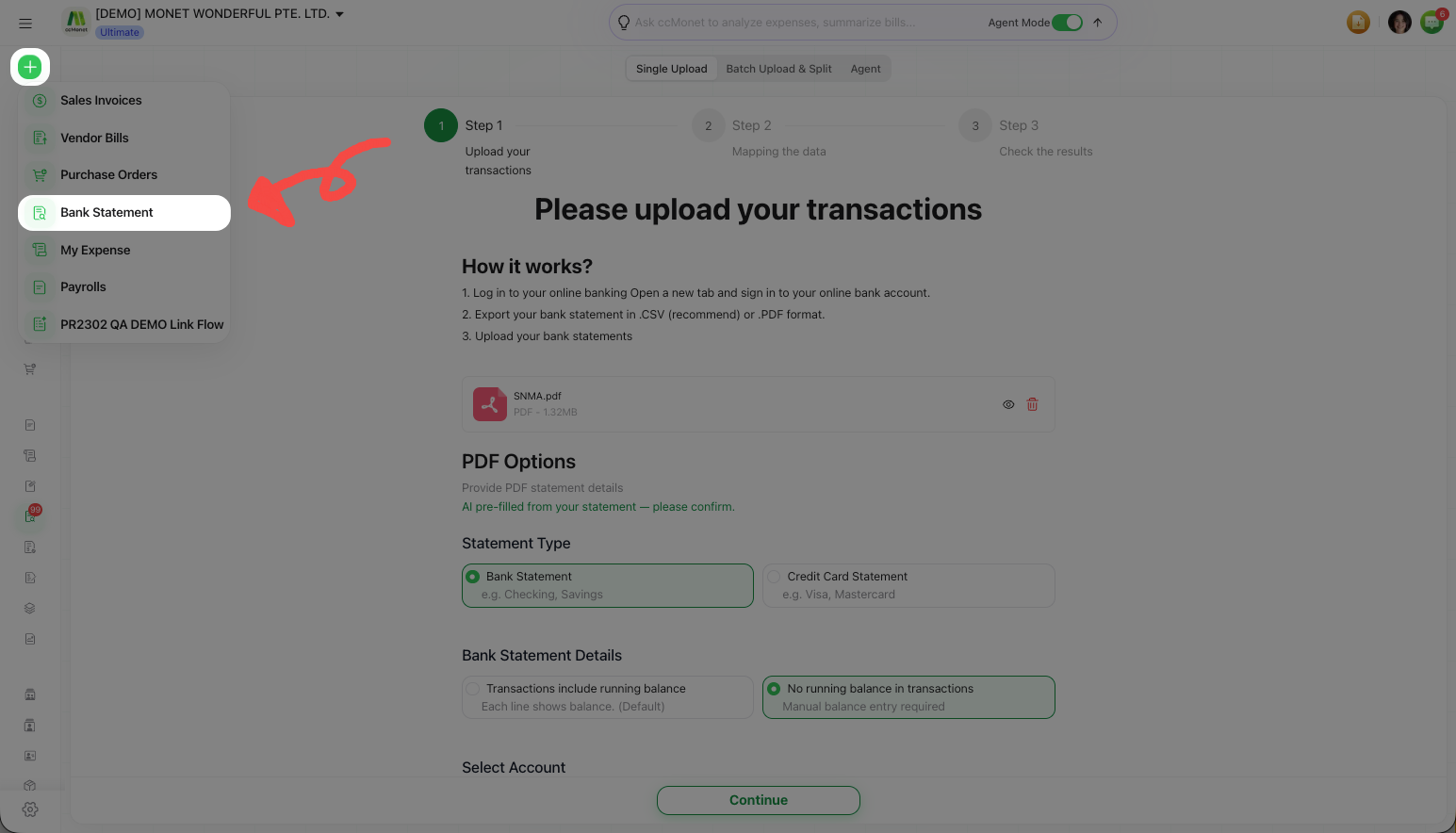
In the left sidebar, open Finance → Bank Statements → Upload. A segmented control at the top offers three modes:
A three-step wizard for one statement — Upload → Mapping → Check.
Upload
Select the account, then drop in the statement file. For a PDF, CCMonet asks whether each transaction line includes a running balance, and collects the opening and ending balances from the statement.
Mapping
Tell CCMonet which column is the date, description, money in and money out. Get this right and every row imports cleanly.
Check
Review the parsed transactions, fix anything that looks off, and confirm the import.
Upload several PDFs at once. If one file contains more than one account, you can split the pages so each account's transactions land in the right place.
Hand the file to the Agent mode, which reads the statement and prepares the import for you. Review the result before confirming. (Agent mode appears when it's enabled for your organization.)
After importing
The transactions appear on the account, ready to reconcile. Head to Reconcile bank transactions.
The opening and ending balances you enter for a statement are what CCMonet uses to check that a statement is complete and continuous with the one before it. If the balances or the "line includes a running balance" answer don't match your actual statement, the continuity check can flag a gap. Enter them exactly as printed on the bank statement.