Invite team members and assign roles
Invite colleagues and your accountant, give each person a role that fits, and manage invites, removals and per-member payment info.
Bring the people who work in your books into CCMonet — colleagues, and your external accountant or bookkeeper — and give each one a role that decides what they can see and do.
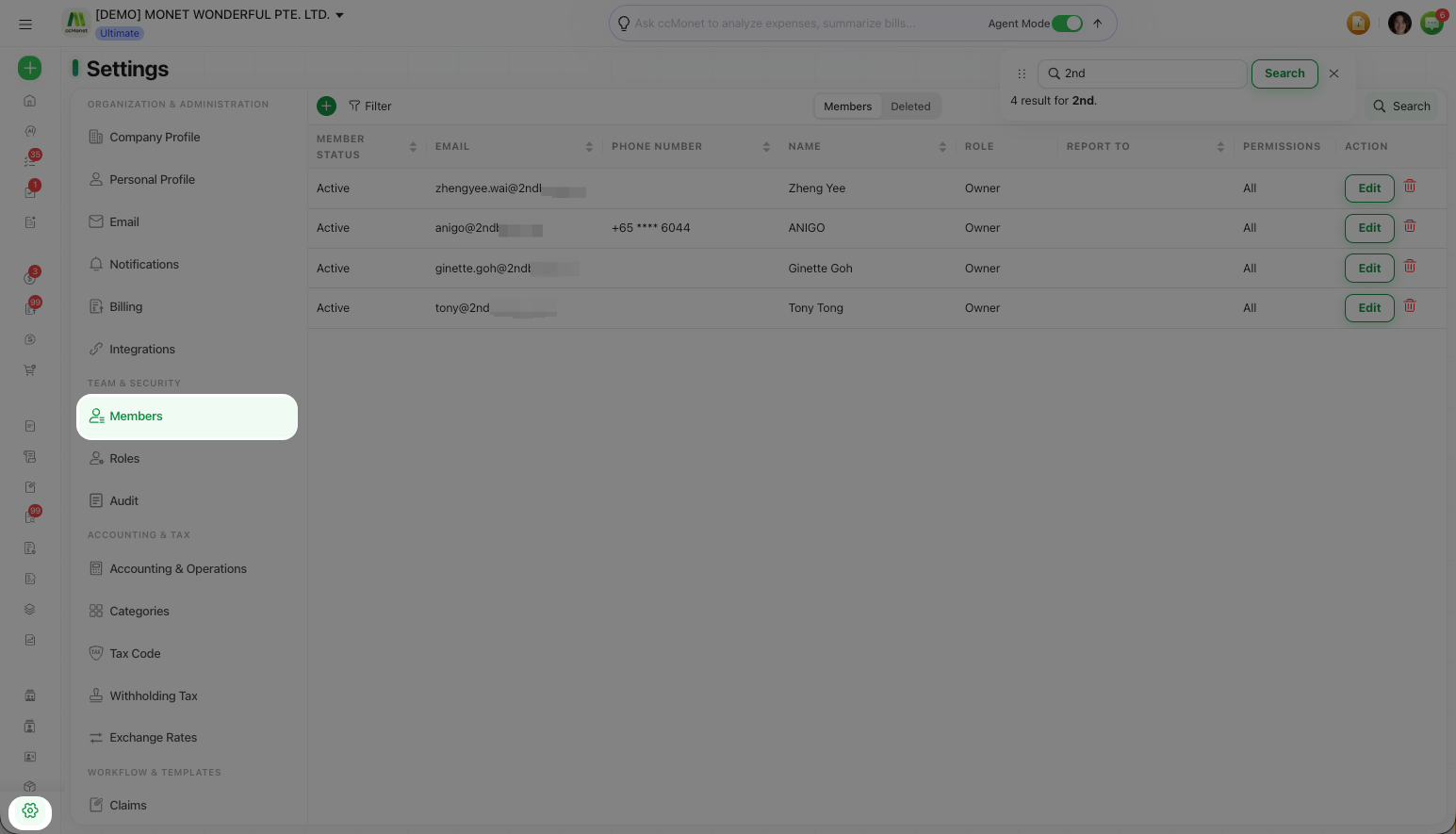
Members are managed under Settings → Members.
Members and roles are managed by the Owner, an Administrator, or a member with member-management permission.
Invite a member
Open Members
Go to Settings → Members to see everyone already in the organization and their status — Active or Pending.
Send an invite
Select the green + button to open the Invite Member dialog. Enter the person's email (or switch to invite by phone number), give them a name, and choose the role they should have and who they report to. CCMonet emails them an invitation to join.
Invite your accountant
Invite your external accountant or bookkeeper the same way, giving them the Accountant (or Bookkeeper / Tax Advisor) role so they have the access they need without being a full administrator.
Standard roles
CCMonet comes with a set of standard roles. Pick the one that fits each person:
| Role | Typical use |
|---|---|
| Owner | Full control of the organization, including billing, org settings and the audit log |
| Administrator | Manages members, settings and day-to-day operations |
| Accountant | Your accountant — accounting, reports and the books |
| Bookkeeper | Records and maintains transactions |
| Auditor | Reviews the books, typically read-oriented |
| Employee | Limited access, often to their own data (e.g. their own claims) |
| Tax Advisor | Access geared to tax and compliance |
If none of the standard roles fit, create a custom role with exactly the module access and approval permissions you need.
Manage members
- Resend an invite that hasn't been accepted yet from the member's row.
- Change a member's role at any time to adjust what they can access.
- Remove a member who no longer needs access.
- Restore a removed member from the Deleted tab if you need to bring them back.
- Set a member's payment info where it's needed for payments made on their behalf.