Set up tracking categories
Create tracking categories to tag transactions by region, factory or any dimension, so you can segment spending and revenue across your records.
Tracking categories let you tag transactions by a dimension that matters to your business — like a region or a factory — so you can track spending and revenue for each separately. For example, you might label costs as "North America Factory" or "Asia Region" and see how each performs.
Once you create them, tracking categories are available for selection across Bills, Income, Claims, Assets and your other records. You set them up on the Tracking Category tab under Settings → Custom Fields.
Tracking categories are management-reporting dimensions — they tag transactions so you can analyze revenue and cost by region, site or any axis you choose, without adding accounts to your chart. They're for internal insight; the formal operating-segment disclosures some entities publish under IFRS 8 are a separate determination — confirm any external segment reporting with your accountant.
Custom Fields, including tracking categories, is an Owner-only settings page.
Create a tracking category
Open Custom Fields
Go to Settings → Custom Fields and choose the Tracking Category tab.
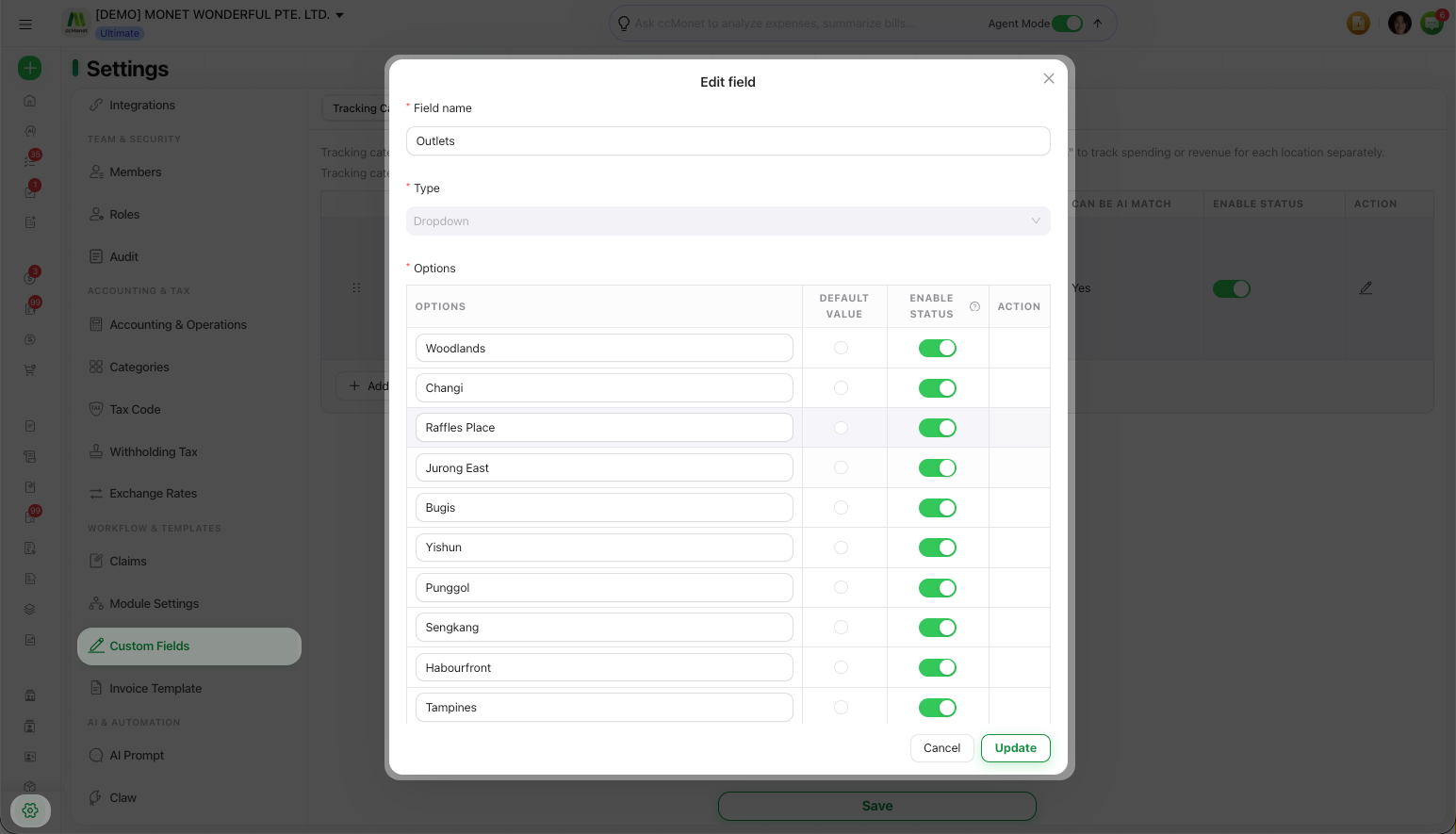
Add your tracking categories
Add the categories you want to tag records with — for example your regions, factories, departments or cost centres.
Save
Save your changes. The categories become available for selection on new records.
Tracking categories apply across records (Bills, Income, Claims, Assets and more), which lets you segment your spending and revenue by the dimension you choose when you review or report on your data.