Set up your company profile
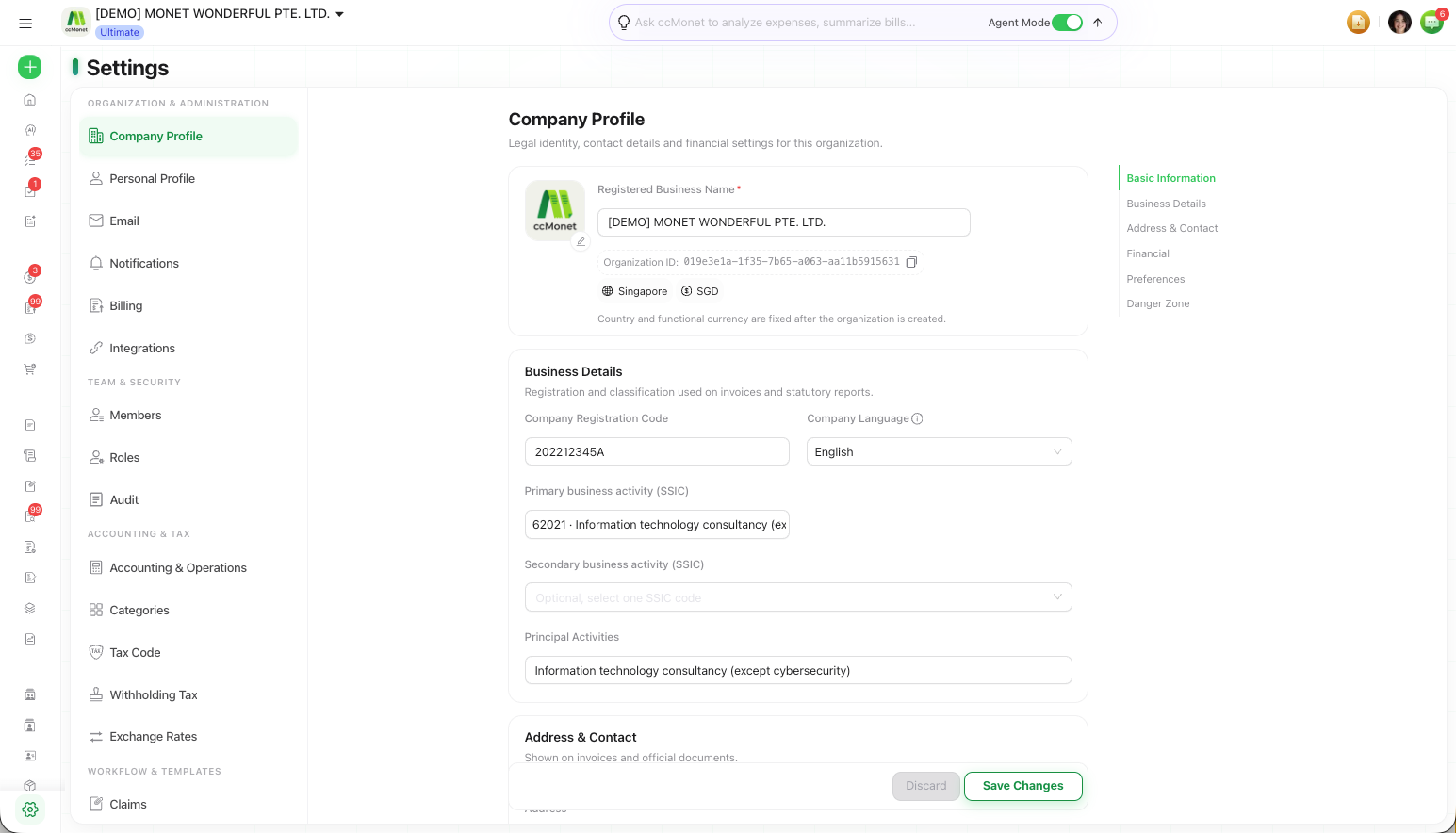
Enter your registered business name, company registration code, country, address and principal activities; manage your fiscal years; and set organization-wide preferences like time zone and date/time format.
Your company profile is your organization's identity in CCMonet. The details you enter here appear on the documents you send — invoices, statements of account, purchase orders — and on your reports, so it's worth filling them in accurately from the start.
The profile lives on the Company Profile tab under Settings.
Company profile is an Owner-only settings page.
- Open Settings from the sidebar and stay on the Company Profile tab.
Fill in your business details
Enter your registered business name and code
Add your Registered Business Name and Company Registration Code as they appear on your official records.
Set your address
Your country is set when the organization is created and shown here — it can't be changed afterwards. Enter or update your business address. These appear on documents and help CCMonet apply the right regional defaults.
Describe your principal activities
Add your principal activities — a short description of what your business does.
Save
Save your changes. Your updated details flow through to new documents and reports.
Financial settings
Your Functional Currency and Fiscal Year End are established when the organization is created, so they're shown here read-only — your whole ledger and history depend on them and they can't be changed afterwards. What you actively manage in this section is your Fiscal Years:
- Fiscal Years — the schedule of your financial periods. Use it to create a short (transitional) first year, or to handle an M&A or a fiscal-cycle change: edit the end date of the latest fiscal year to make a short year, and later years automatically realign to your standard fiscal year-end month.
Functional currency and fiscal year end are fixed at registration; your fiscal-year periods drive how reports and closing periods are calculated. For what these mean under IFRS (IAS 21 / IAS 1), see Set your functional currency and fiscal year end. Confirm any fiscal-period change with your accountant.
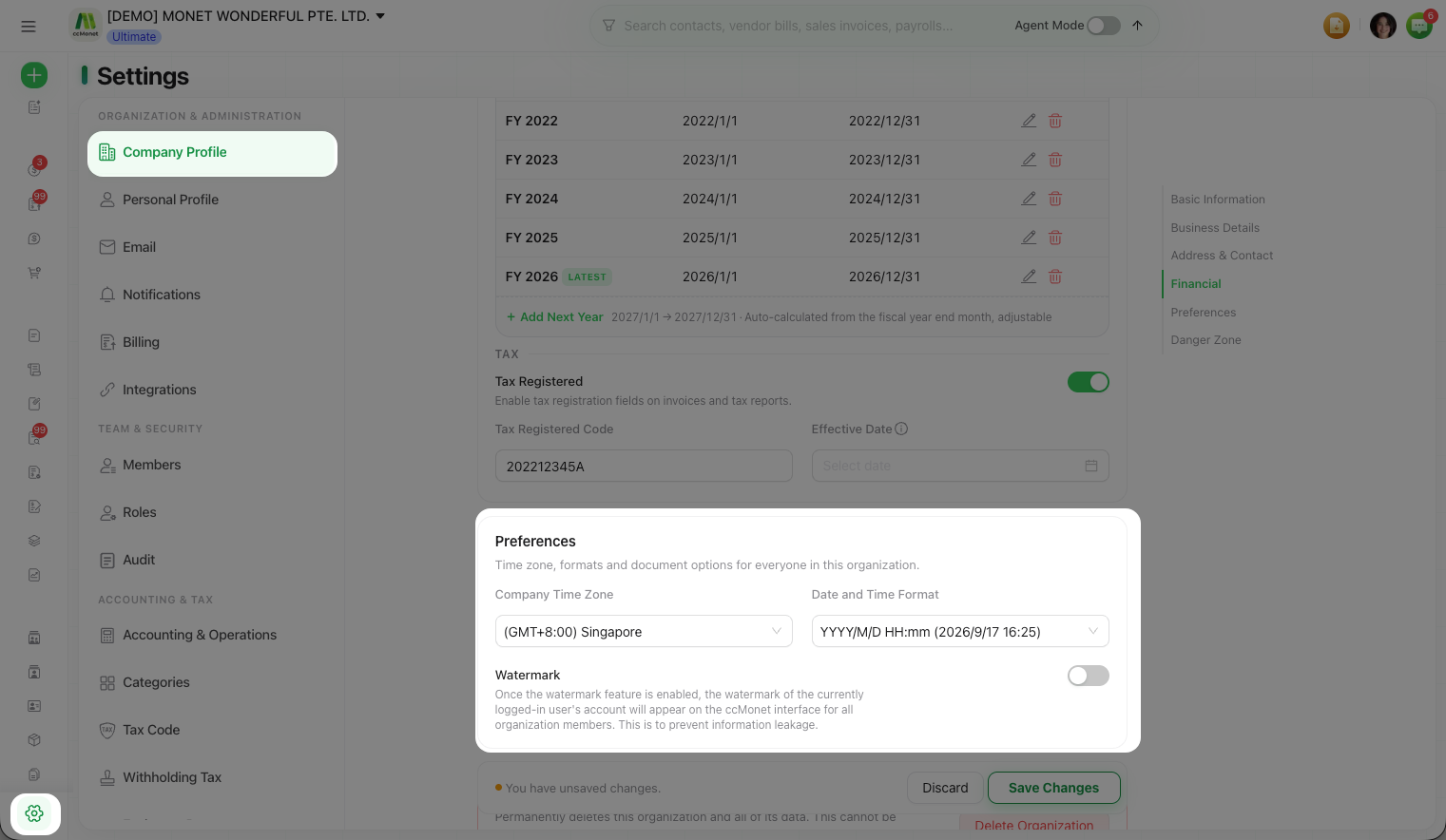
Preferences
The Preferences section sets organization-wide display options — time zone, formats and document options for everyone in this organization:
- Company Time Zone — the time zone your organization's dates and timestamps are based on.
- Date and Time Format — how dates and times are shown across CCMonet and on the documents you send.