Create a purchase order
Raise a purchase order for a vendor manually or by uploading a file, then approve it.
A purchase order (PO) is the document you send a vendor to order goods or services. In ccMonet you can build one from scratch or upload an existing PO file, then approve it before sending.
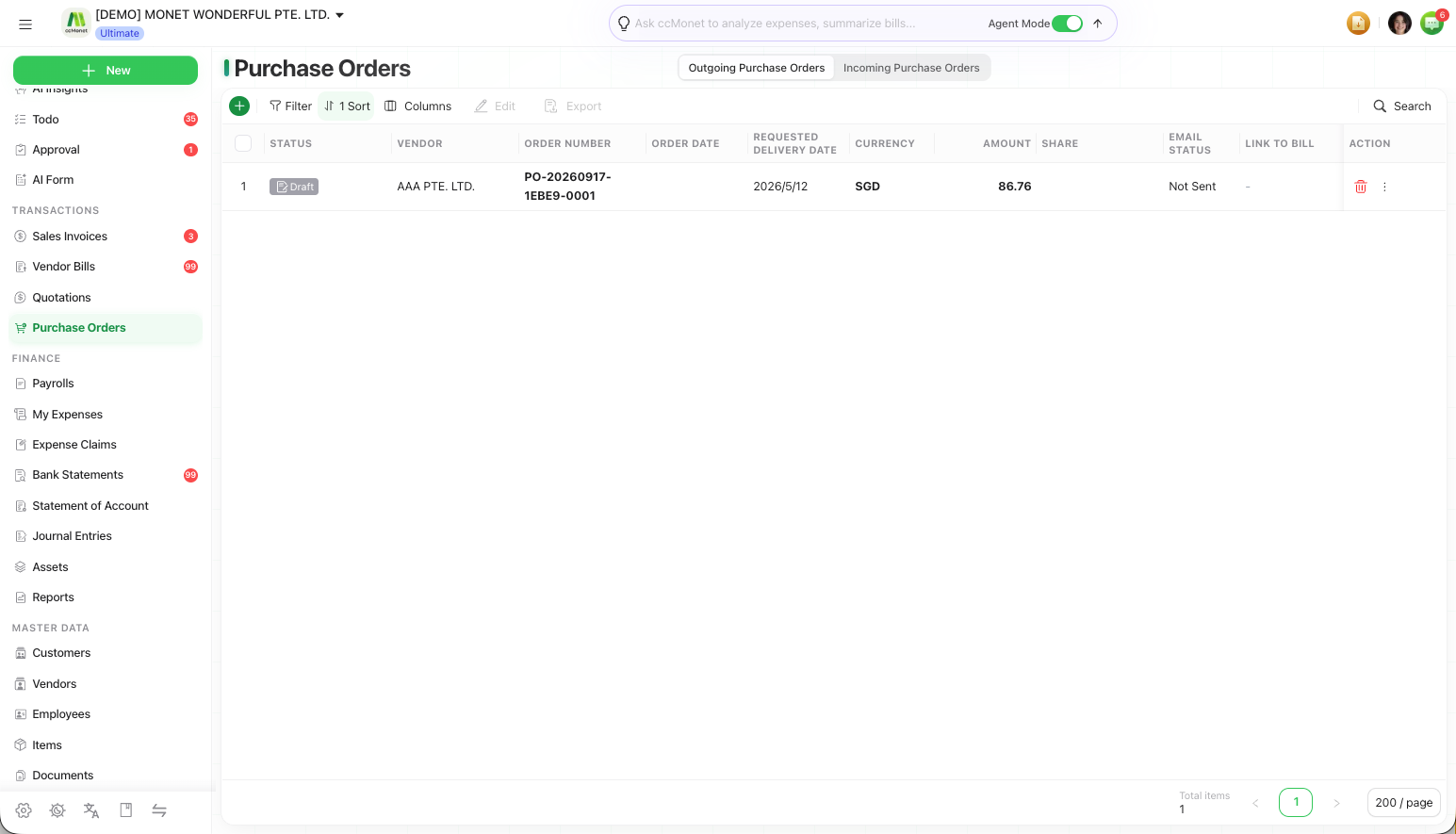
Find purchase orders in the left sidebar under Transactions → Purchase Orders.
Create a PO manually
Start a new purchase order
On the Purchase Orders page, create a new PO.
Fill in the details
Choose the vendor, add the line items (product, quantity, price), and set any dates and shipping information.
Save
Save the PO. It starts as a Draft you can keep editing.
Create a PO by uploading a file
If you already have a PO as a file, upload it and let ccMonet capture the details into a PO, the same way it reads bills. Review the captured fields before saving.
Approve a purchase order
A PO usually needs approval before it's sent to the vendor.
Open the draft PO
Open the PO you want to approve.
Approve
Choose Approve. The PO moves from Draft to Approved and is ready to send.
Purchase orders move through statuses such as Draft, Approved, Sent, Delivered, Invoiced, Voided and Vendor Declined. See Manage purchase orders for what you can do at each stage.