Manage purchase products
Keep your catalog of purchased products tidy with Preferred Names, merging and splitting, categories, and imports.
Purchase Products is your catalog of everything you buy. Because AI reads product names off bills exactly as vendors write them, the same item can show up under several spellings — so this catalog lets you consolidate them under one Preferred Name for clean price tracking, exports and integration.
Open it from the left sidebar under Master Data → Items.
Set a Preferred Name
A Preferred Name is the single name you want to use for a product, regardless of how it was written on each bill.
Open a product
Open a purchase product from the catalog.
Set its Preferred Name
Enter the Preferred Name. The AI-recognized names map to it, so the product is tracked as one thing.
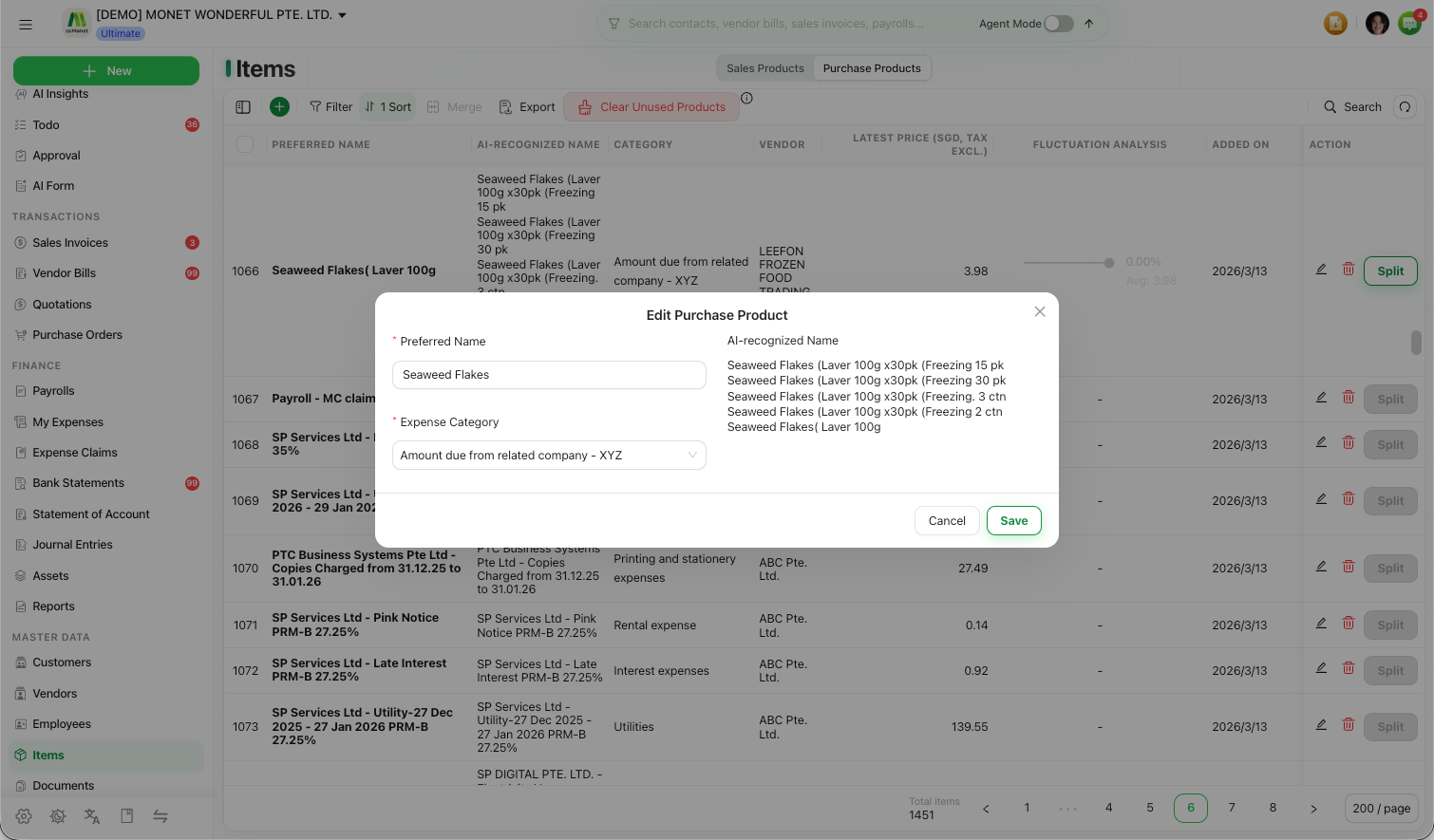
For consolidating several recognized names at once, see Merge AI-recognized product names.
Merge product names
When the same product exists under different recognized names, merge them so they become one product with one Preferred Name and combined history.
Select the products to merge
Pick the entries that are really the same product.
Merge
Choose Merge and set the Preferred Name to keep.
Split a product
If entries were merged that shouldn't have been — or one product record actually covers two different things — split it back apart into separate products.
Change a product's category
Set or change the category a product uses, so purchases of it are coded consistently. See Assign categories to bill line items for how categories work on a bill.
Import products and clear unused
- Import a product list in bulk when setting up, rather than adding each one.
- Clear Unused Products to remove entries you've never purchased and keep the catalog lean.