Assign categories to bill line items
Set the account category on each line of a vendor bill so it's recorded under the right account.
Every line on a bill needs a category — the account it's recorded against, such as rent, utilities, software or a fixed asset. The category is what tells ccMonet how the line is treated in your books, so it's the most important thing to get right before you confirm a bill.
- You're reviewing a captured bill.
Set a category on a line
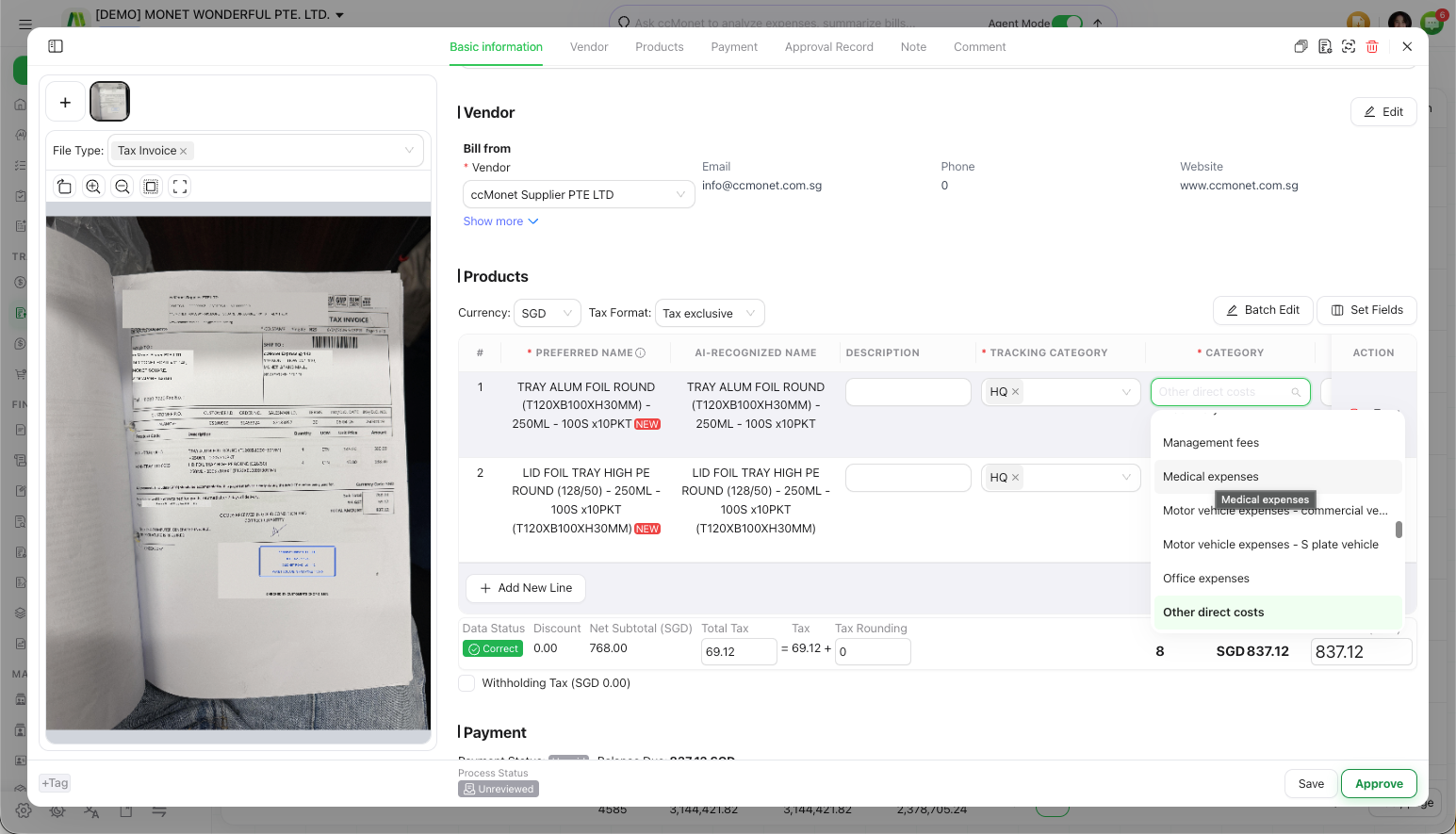
Open the category picker
On a bill line, select the category field to open the category picker.
Choose the category
Search for and pick the category that fits the line. You can set a different category on each line of the bill.
Repeat for every line
Give every line a category. A line without one usually blocks you from confirming the bill.
When the AI recognizes a bill it often suggests categories based on the vendor and description. Always check the suggestion — you can override it on any line.
Fixed-asset categories
If you choose a fixed-asset category for a line, ccMonet treats that line as an asset rather than a regular expense. You may see a prompt about how the line is handled in your asset register when a category is added or removed.
The category on a line determines the account (and any tax code attached to it) that the line posts to when the bill is confirmed — and a fixed-asset category routes the line into your asset register, where it may be depreciated rather than expensed. Which category is correct for a given purchase, and how fixed assets and their depreciation should be handled, are accounting decisions best confirmed with your accountant.