Record a payment against a vendor bill
Record full or partial payments on a bill, including the paying account, and mark bills as paid.
When you pay a bill, you record the payment in ccMonet so the bill's balance goes down and its payment status updates. You can pay a bill in full, pay it in parts over time, and record which account the money came from.
- The bill exists and is confirmed.
Record a payment
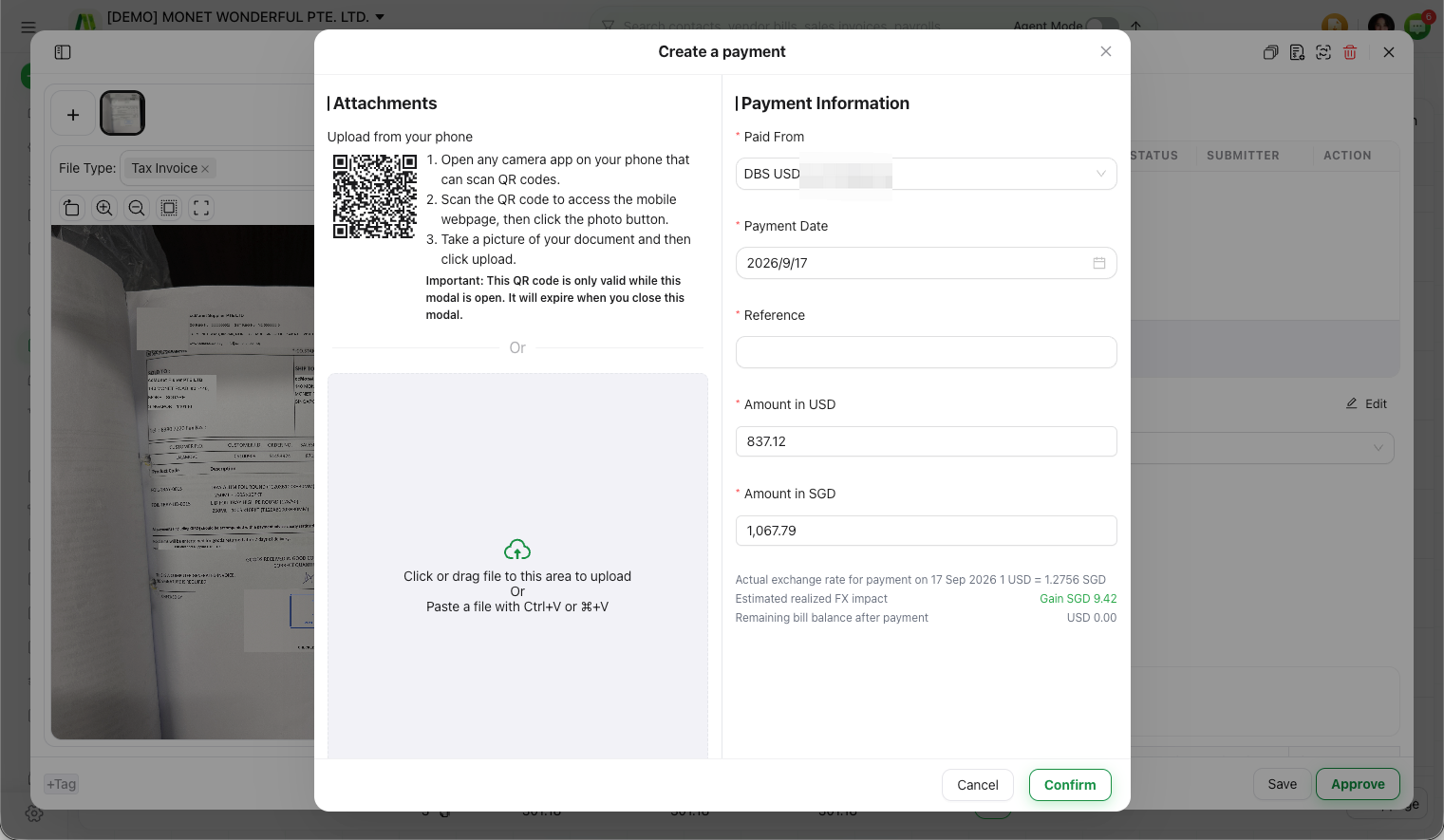
Open the payment form
On the bill, add a payment.
Enter the payment details
Set the Payment Date, a Reference if you have one, the Payment Amount, and Paid From — the account the money was paid from.
Save
Save the payment. The bill's Balance Due drops by what you paid, and its status becomes Partially Paid or Paid.
Partial payments
If you pay only part of a bill, enter the amount you actually paid. The bill stays Partially Paid with the remainder outstanding, and you add further payments later until it's settled. A bill can hold several payments, each with its own date, amount and account.
Mark a bill as paid
If you don't need to track the exact payment detail, you can simply Mark as Paid. To do this for many bills at once from the list, see Mark multiple bills as paid.
Edit or delete a payment
Open the bill's payment list to change a payment's details or remove one you recorded by mistake. The bill's balance and status update accordingly.
Related payment actions
- Handle withholding tax when paying a bill — withhold tax on the payment.
- Create a payment request — batch a remittance across several bills.
Recording a payment posts an entry against the paying account you choose (a bank or cash account) and reduces what you owe the vendor. Which account to pay from, and how the payment should ultimately be reconciled on your bank statement, affect your books — this manual covers how to record the payment; confirm the accounts and any tax treatment with your accountant. Once the money appears on your bank feed, match it during reconciliation.