Split or merge PDF pages when uploading bills
Break a multi-bill PDF into separate bills, or combine pages that belong to one bill, before AI recognition.
Real-world PDFs don't always contain exactly one bill. A single file might hold several bills, or one bill might be spread across pages. Before AI recognition runs, you can split or merge the pages so each bill is captured correctly.
- You're uploading a bill and the file is a PDF.
Split one PDF into several bills
When one PDF contains multiple bills, split it so each becomes its own bill.
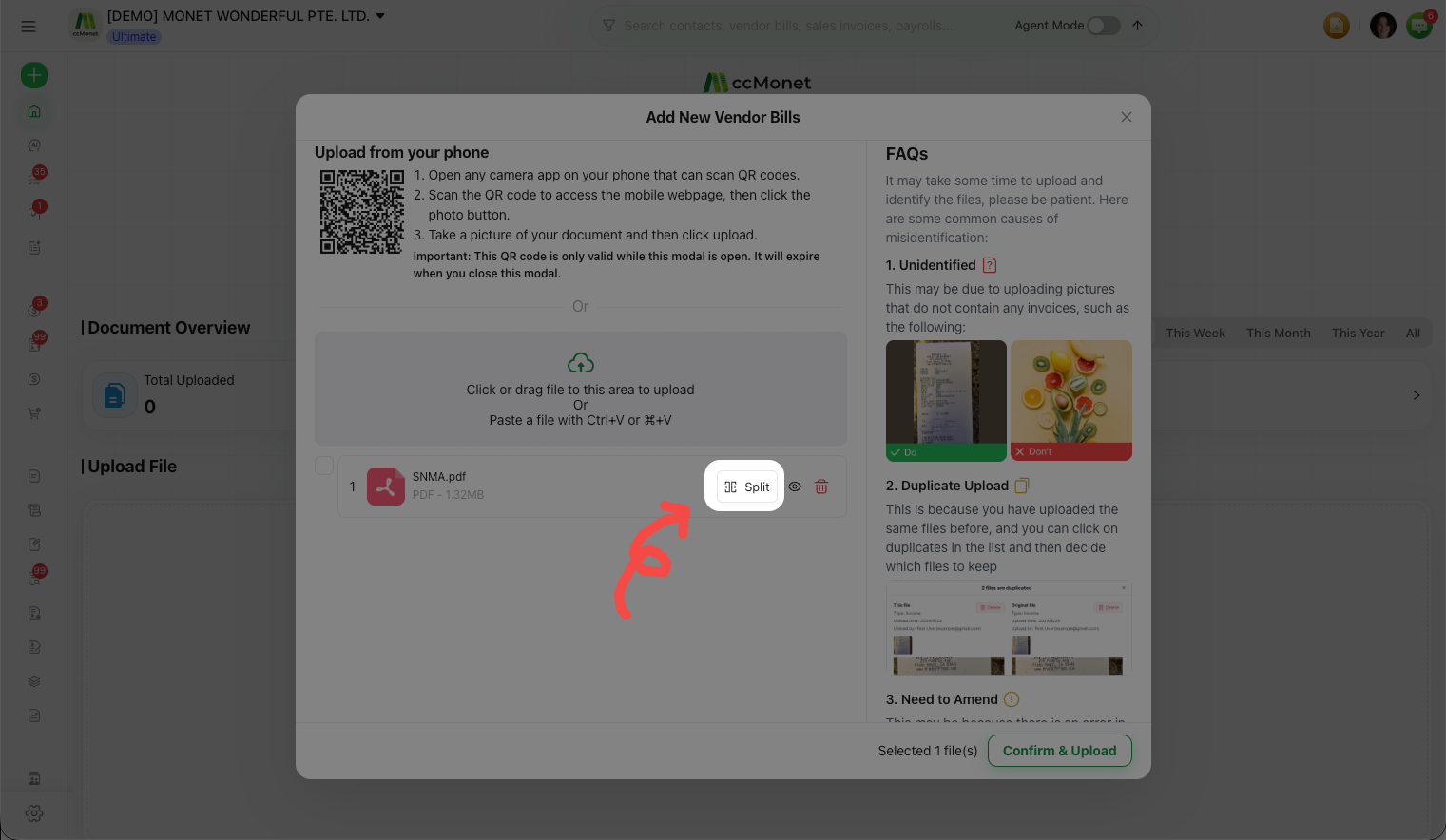
Open Split Document
In the upload window, open Split Document for the PDF.
Set where each bill starts
Mark the page boundaries so each bill's pages are grouped together, or let AI Auto Split find the boundaries for you.
Confirm
Choose Confirm. Each group is recognized as a separate bill.
Merge pages into one bill
When one bill is spread across several pages or files, merge them so the AI reads them as a single document.
Open Merge to PDF
In the upload window, open Merge to PDF.
Order the pages
Put the pages in the right order so the merged bill reads correctly.
Confirm
Choose Confirm Merge. The combined pages are recognized as one bill.