Review and edit a captured vendor bill
Open a bill, check the AI-recognized fields and line items against the source document, correct anything, and confirm it.
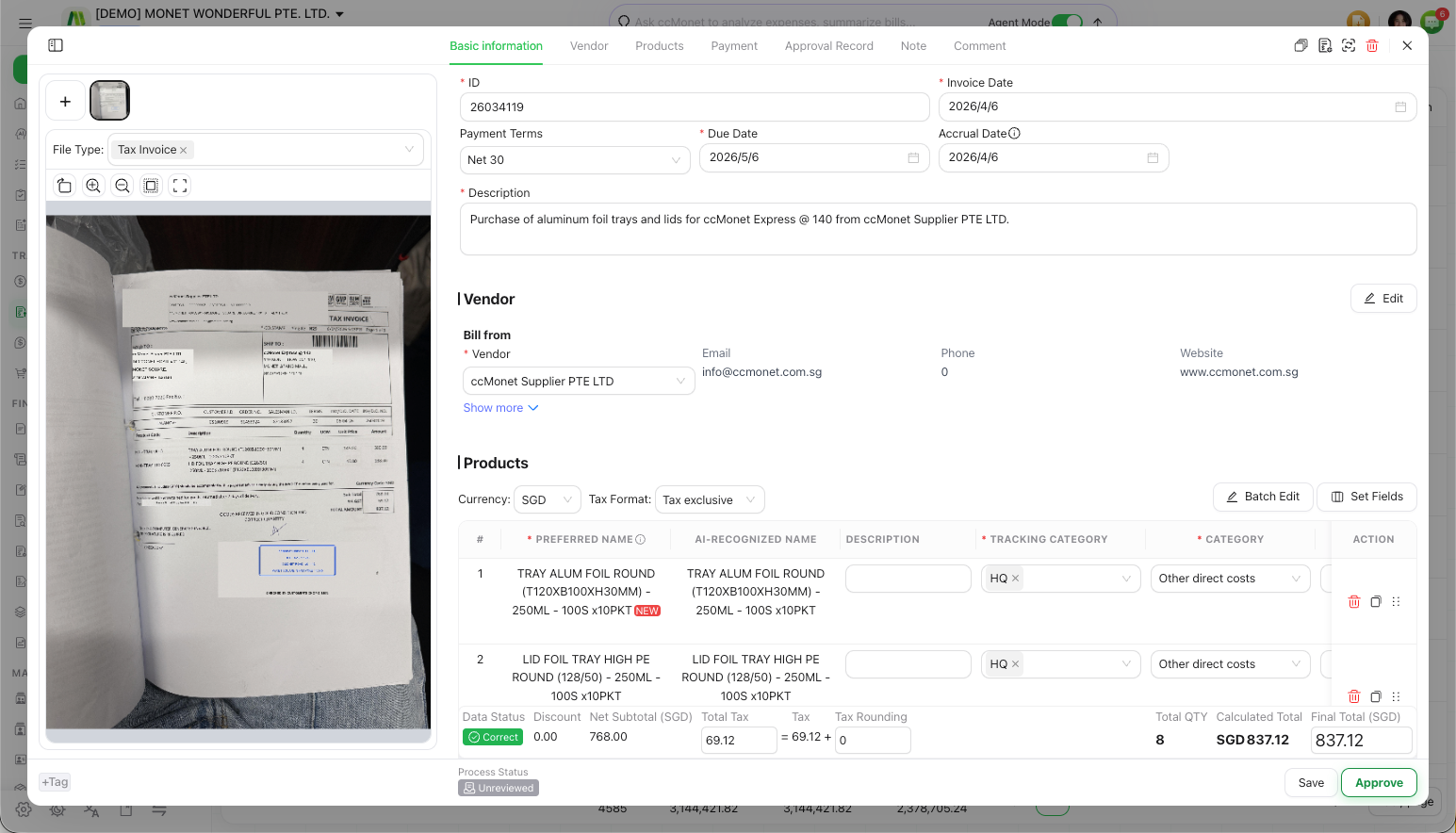
After a bill is captured, you open it to check the AI got everything right. The bill detail shows the source document preview on one side and the editable fields on the other, so you can compare line by line and fix anything before confirming.
Open a bill from the Vendor Bills list — it opens as a pop-up window over the list, or as a full page.
- The bill has been uploaded and recognized, or created manually.
Check and correct the bill
Compare against the source
With the document preview beside the form, confirm the AI read the vendor / payee, dates, amounts and line items correctly.
Fix the header fields
Correct the vendor, the invoice date, accrual date and due date, and — for a foreign-currency bill — the currency and exchange rate.
Check the line items
Review each line's description, product, quantity, unit price and tax. Assign a category to every line, and split a line if one line actually covers several things.
Confirm the totals
Check the subtotal, tax and total against the document, then choose Approve to finalize the bill — or Submit for Approval if your organization uses an approval flow.
Split a line into multiple items
When one recognized line really covers several things — for example a single total that should be broken into two categories — you can Divide it. Open the line's Divide option and split it into multiple items, setting the amount for each. Each resulting item can then take its own category, product and tax.
Dividing a line keeps the bill total the same — you're only splitting how that total is broken down across items.
Approve vs submit for approval
- Approve finalizes the bill directly, when no approval flow is set up.
- If your organization uses an approval flow, the button reads Submit for Approval instead — the bill goes to an approver and is finalized once approved.
See Submit and approve a bill.
The accrual date, exchange rate and the category on each line all affect how a confirmed bill is recorded in your ledger — including how a foreign-currency bill is converted and how tax is calculated and rounded. ccMonet performs the posting; the dates, rate source and categories that are correct for your business, and the treatment of any tax or currency difference, are best confirmed with your accountant. If a line uses a fixed-asset category, ccMonet may prompt about how it's handled in your asset register — see Assign categories to bill line items.