Create and submit an expense claim
Group expenses into a claim, submit it for approval, and withdraw it if you need to.
An expense claim groups several expenses together so they can be approved and reimbursed as one. The company-level Expense Claims list is where claims are created, submitted, and tracked through approval.
Open it from the left sidebar under Finance → Expense Claims.
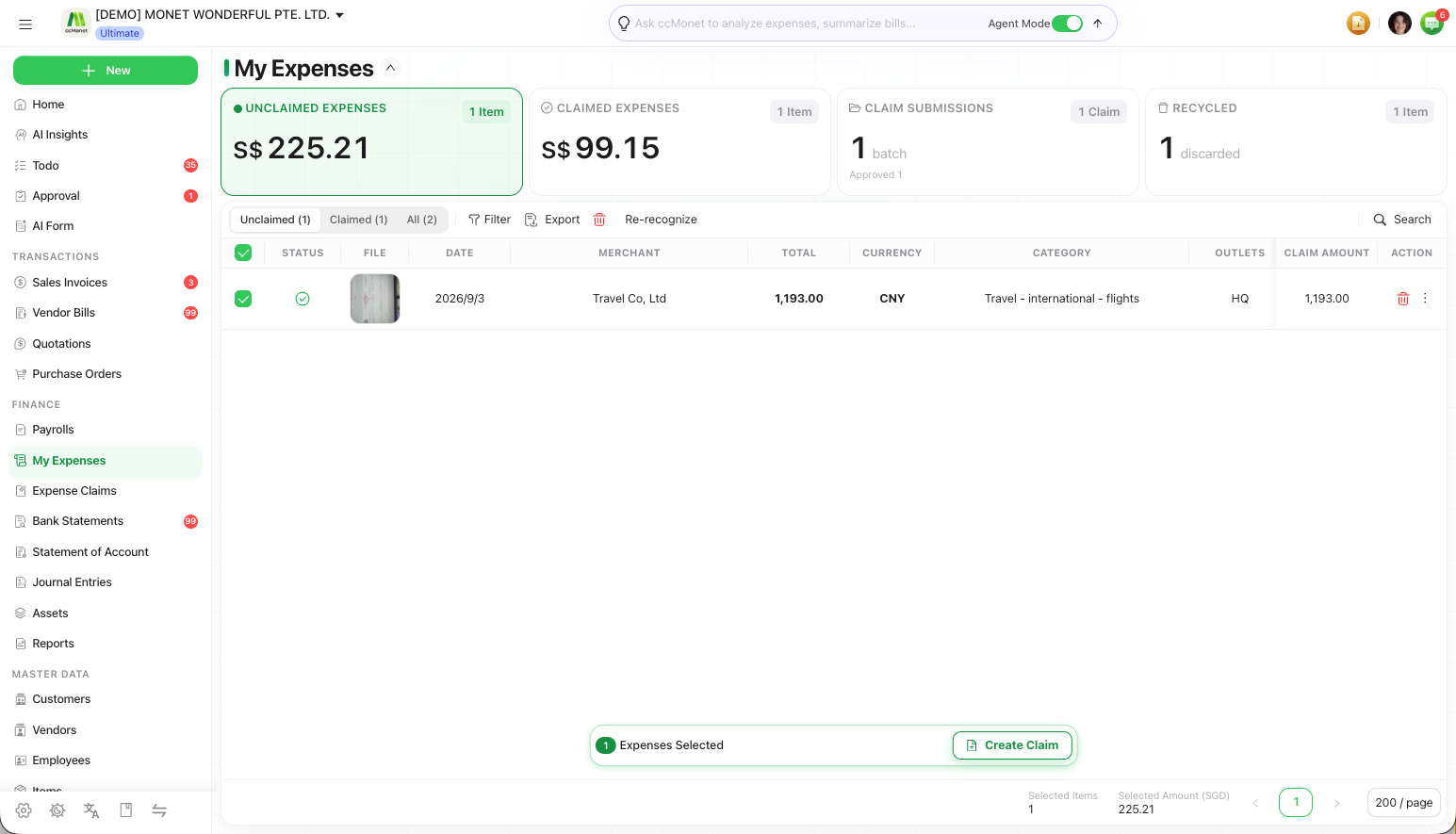
For an employee's own view — uploading personal expenses and grouping their own into a claim — see My Expenses and My Claims.
Create a claim from expenses
Start a new claim
On the Expense Claims list, create a new claim.
Select the expenses to include
Choose the expenses that belong in this claim. They're grouped into the one claim.
Save the claim
Save it. The claim totals up the expenses you selected.
Submit for approval
When the claim is ready, submit it. It enters the approval flow and waits for an approver to approve or reject it.
Withdraw a submitted claim
If you submitted a claim by mistake or need to change it, withdraw it to pull it back out of the approval flow. Make your changes and submit again.
You can usually only withdraw a claim while it's still awaiting approval. Once it's been actioned, the options available change.