Edit multiple bills at once
Use batch operations to change dates, payee, notes or tags on many bills, mark them as approved or paid, or revoke them in one go.
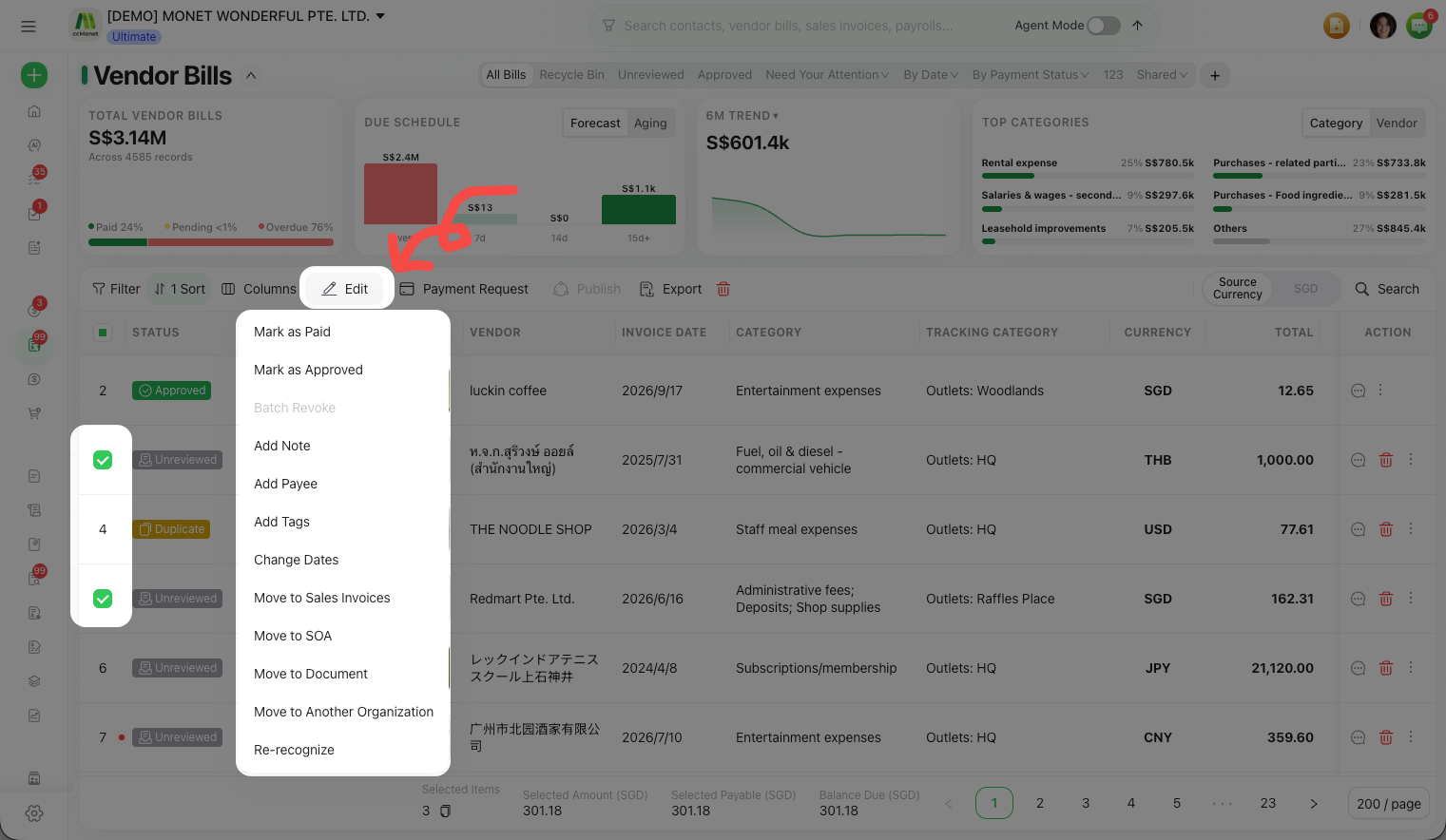
When you have a stack of bills that need the same change, batch operations save you opening each one. Select the bills in the list, choose an action, and apply it to all of them at once.
- You're on the Vendor Bills list.
Run a batch operation
Select the bills
Tick the bills you want to change. A batch toolbar appears for the selected rows.
Choose an action
Pick what to apply to all of them:
| Action | What it does |
|---|---|
| Change Dates | Set invoice / accrual / due dates across the selection |
| Add Payee | Set the vendor / payee on the selected bills |
| Add Note | Add or replace a note |
| Add Tags | Tag the selected bills |
| Mark as Approved | Finalize the selected bills together (see below) |
| Mark as Paid | Mark the selected bills as paid (see below) |
| Batch Revoke | Revoke the selected bills |
Apply
Confirm the operation. The change is applied to every selected bill.
Mark bills as paid
Mark as Paid on a selection marks all the chosen bills as paid in one step — handy when you've settled a batch together. For recording exact payment details (amount, account, partial payments) on a single bill, use Record a payment against a vendor bill.
Bulk-approve bills
Mark as Approved finalizes every selected bill together, so you don't have to open each one — useful once you've reviewed a batch of captured bills and they're all correct. If your organization uses an approval flow, this action reads Submit for Approval instead and sends the bills into the flow.
Batch actions apply to every selected bill and can't be undone in one click. Double-check your selection before you confirm.
Bulk-approving bills and marking them as paid post to your ledger just as they would one at a time. Review the bills' categories and the payment details before applying a batch action; the accounts involved are best confirmed with your accountant.