Upload a vendor bill for AI capture
Drag, drop or paste a bill file and let AI read the vendor, dates, amounts and line items into a draft bill.
The fastest way to enter a bill is to hand the file to ccMonet and let AI read it. You upload a photo, scan or PDF, and the system extracts the vendor, dates, amounts and line items into a draft bill for you to review.
Upload a bill
Open the upload window
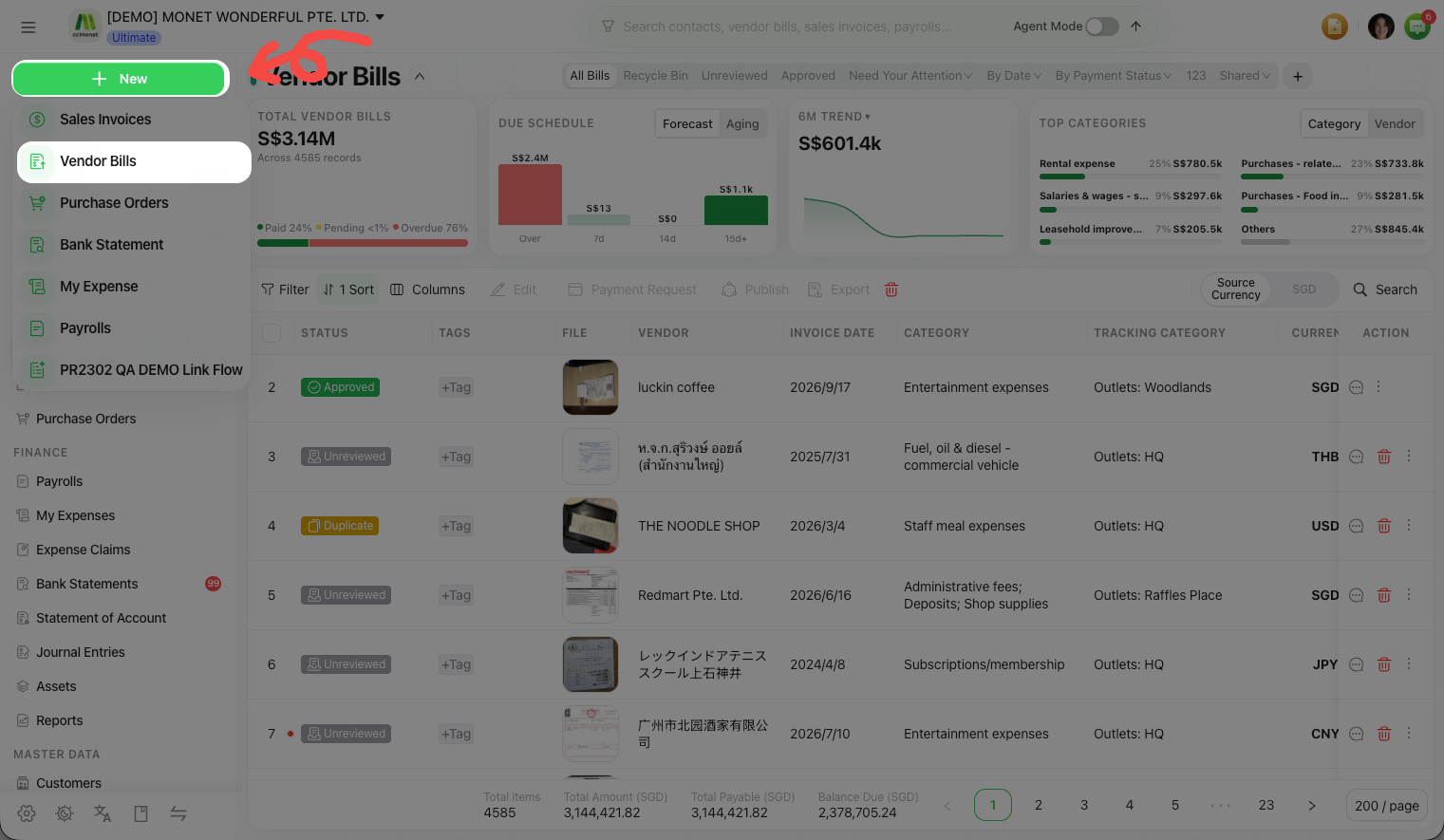
From Vendor Bills (or the global New button), open the upload window.
Add the file
Drop the file in, browse for it, or paste it with Ctrl/Cmd + V if it's on your clipboard. You can add more than one file at once.
Let AI recognize it
Choose Confirm & Upload. Each file gets an AI recognition task, and a draft bill is created from what the AI reads.
Review the draft
Open the draft to check and correct it before confirming.
Oversized files
If a file is too large to upload, ccMonet offers to compress it first, so it still goes through without you having to shrink it yourself.
Multi-bill files
If one PDF holds several bills, or one bill is split across pages, you can split or merge the pages before recognition so each bill is captured on its own. See Split or merge PDF pages when uploading bills.
Unified Recognition
Some organizations have Unified Recognition, which auto-classifies each uploaded file into the right document type (bill, invoice and so on) so you don't have to pick. See How Unified Recognition auto-sorts your uploaded files.
Re-run recognition on a bill
If a bill was misread — or you replaced the file — you can ask the AI to read it again. Open the bill and choose Re-recognize; the AI processes the source document again and updates the captured fields. You then review the fresh result as usual.
Re-running recognition re-reads the document — any manual edits you made may be overwritten by the new result, so re-check the bill afterward.